Sets a password for your account, or changes it.
Both live in Settings → Your account, reached from your practice name at the bottom of the sidebar. The Password login section there is marked Enabled or Disabled.
- Turn it on — fill in New password and Confirm new password, then click Enable password login. The meter under the field ticks off five rules as you type: 8+ characters, an uppercase letter, a lowercase letter, a number, and Hard to guess.
- Change it — fill in Current password as well, then click Update password.
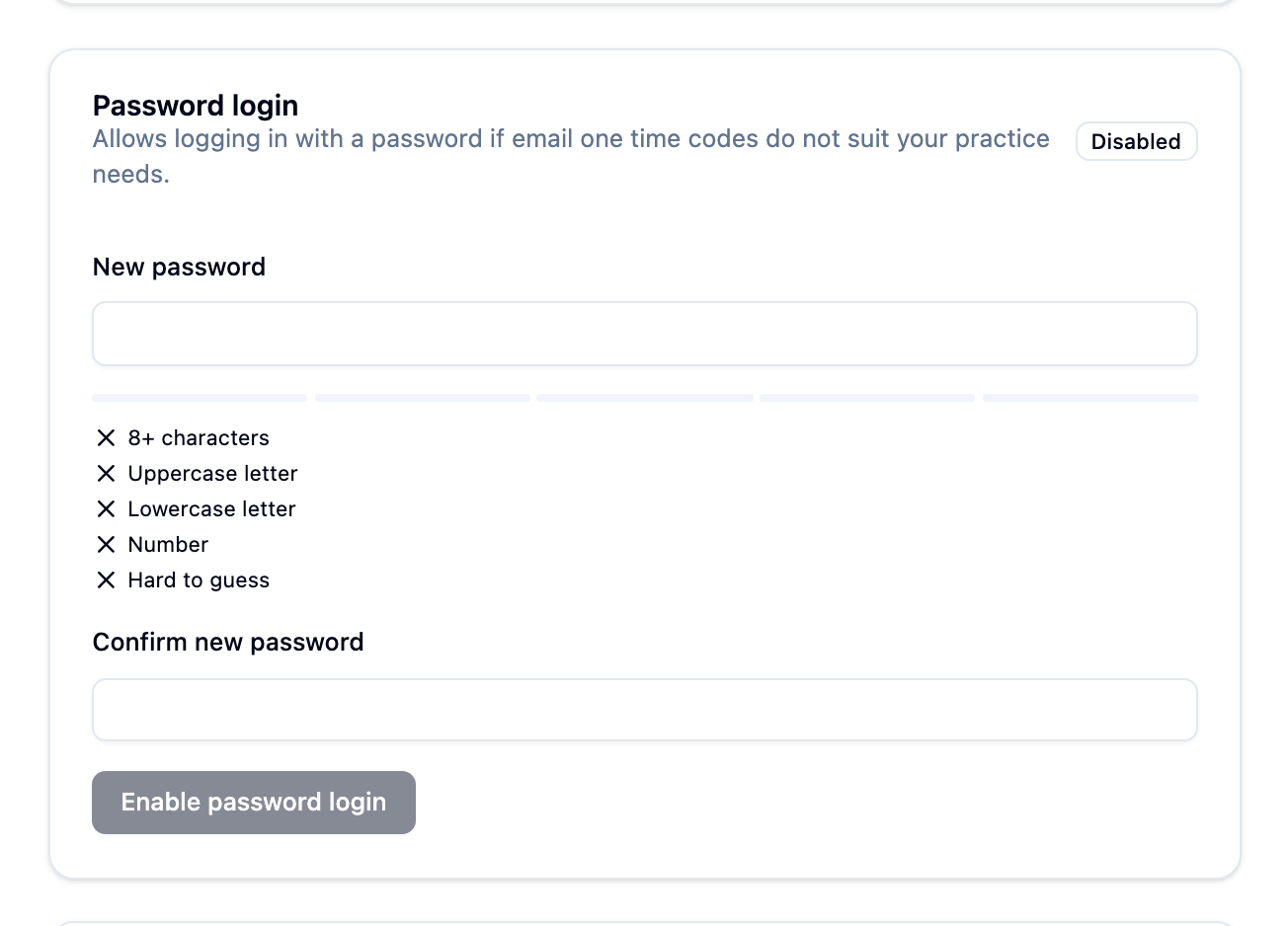
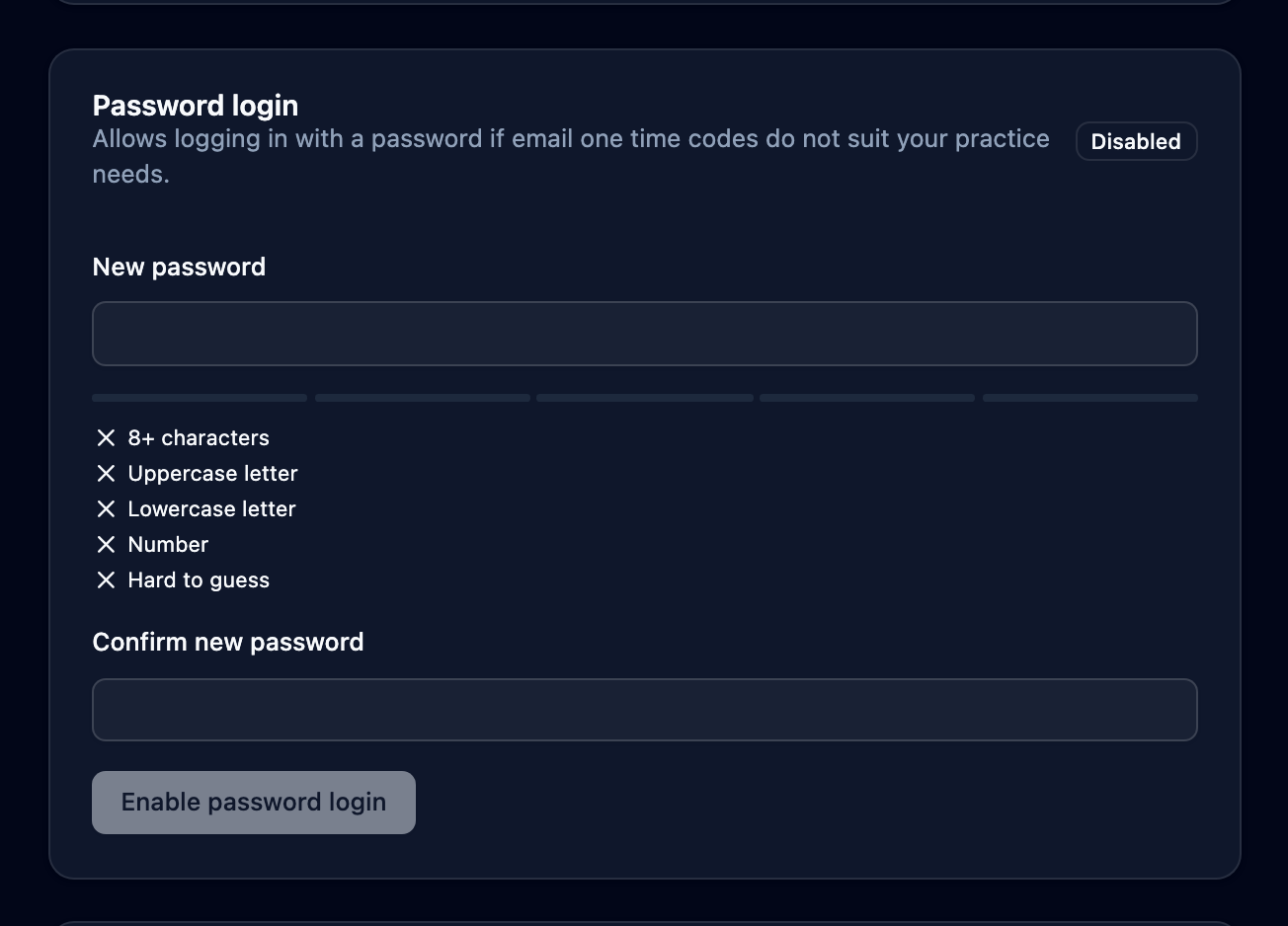
Hard to guess is the rule that catches most attempts. Common words, names, keyboard runs like qwerty, and anything built out of your email address fail it, so Password1 ticks the first four and stops there. A line under the meter says what the problem is. Once all five ticks are green the password will be accepted.
Changing the password signs out every other computer you’re signed in on; the one you’re using stays signed in.
With two-factor authentication on, a Confirm password setup or Confirm password change box asks for the current code from your authenticator app first.
Settings → Your account also lists every computer you’re signed in on, under Active Sessions. If one you don’t recognise is there, click Log out all other sessions.