Adds multi-factor authentication to your Mediref account through an authenticator app such as 1Password or Google Authenticator. Every sign-in then asks for the app’s 6-digit code after your password or emailed code.
Your organisation may make this mandatory, in which case Mediref asks you to set it up the next time you sign in. Mediref issues no backup or recovery codes, so keep the app on a phone you’ll have with you.
Turn it on
- In Settings → Your account, click the Two-factor authentication switch on.
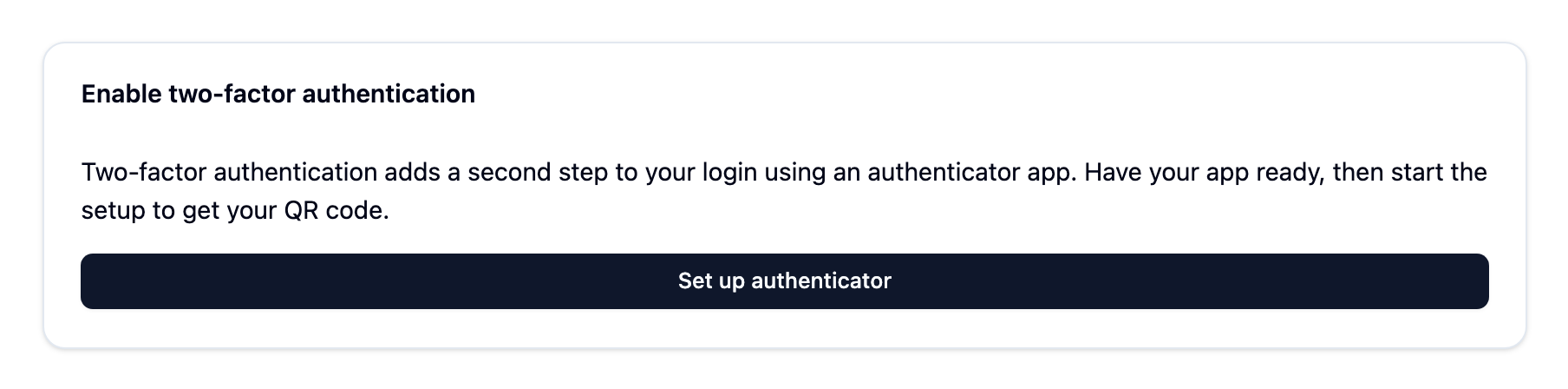
- On the Enable two-factor authentication page, click Set up authenticator, then scan the QR code with your app’s scanner. There’s a QR code only — no key to type in.
- Type the 6-digit code your app shows into the boxes and click Enable 2FA.
Mediref signs you out: “Two-factor authentication enabled successfully! Please sign in again.” From then on you’re asked for a code at every sign-in, after the password or emailed code, and in Settings → Your account before you set or change the password.
Turn it off
Click the same switch off, then type the current code from your app on the Disable two-factor authentication page and click Disable 2FA. Unlike turning it on, this doesn’t sign you out.