This month was about finding correspondence faster and getting around Mediref without reaching for the mouse. You can also now decide when the New tag comes off.
Search from anywhere
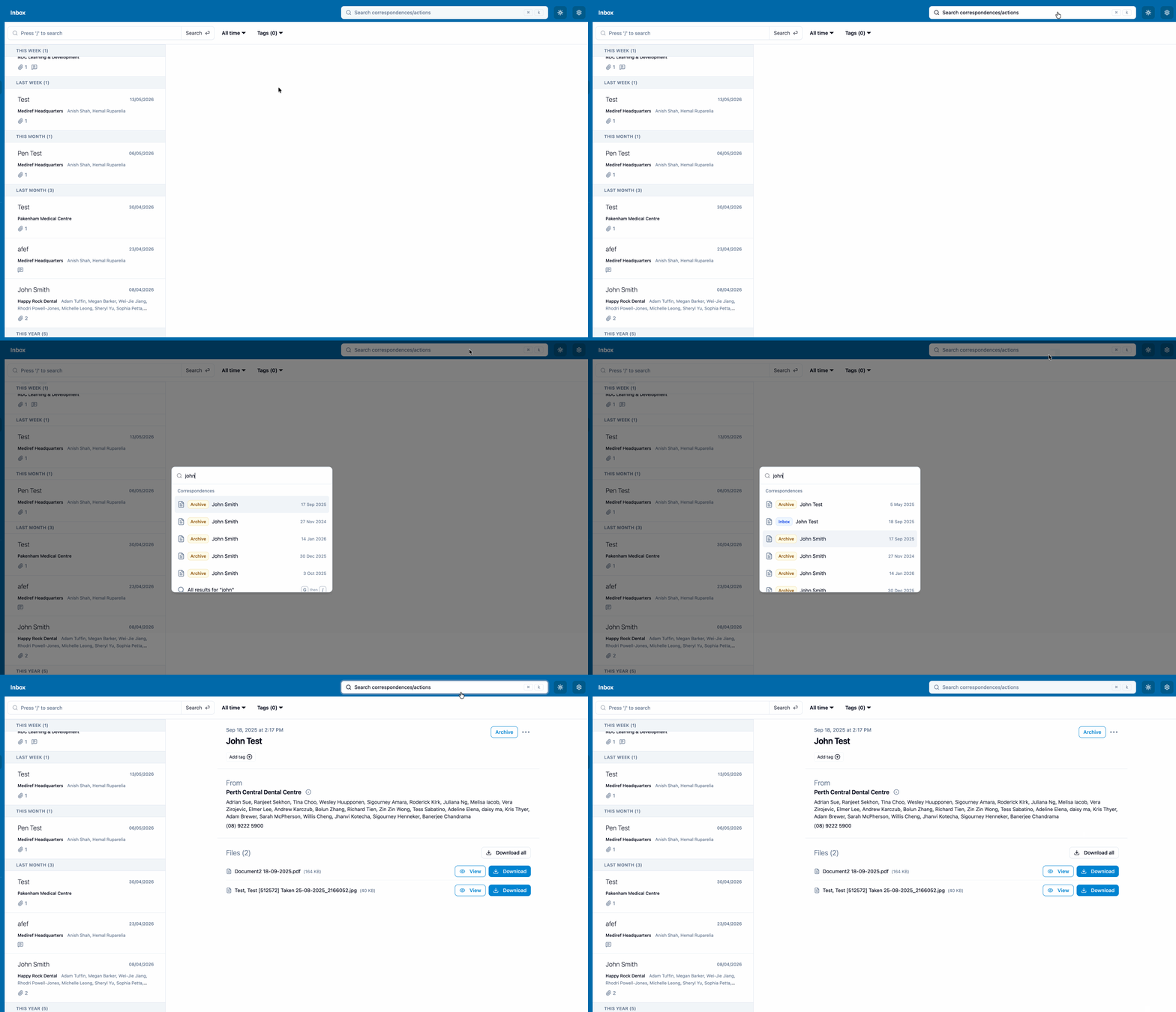
Press Ctrl+K (Cmd+K on a Mac) on any page and start typing a patient’s name. After three letters, matching correspondence appears with its folder and date. Select one to open it straight away.
For a closer look, choose All results for ”…” to open the search page, where you can narrow results by folder and date range. The words that matched are highlighted. Search covers patient names and emails, and the practices and practitioners on both sides of a correspondence, and it allows for small typos.
Keyboard shortcuts
Press G and then a letter to go to a page: C for Compose, I for Inbox, A for Archive, S for Sent, D for Drafts, R for Directory and T for Settings. Hover over a sidebar item to see its shortcut.
- Ctrl+Enter sends the correspondence you're composing.
- B bookmarks the filtered view you're looking at.
- ? opens help and support.
Choose when the New tag is removed
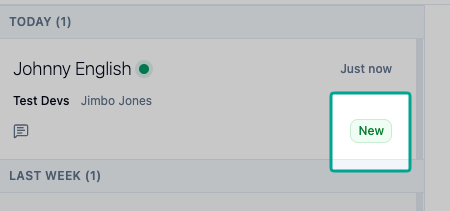
Some practices use the New tag as a to-do list and don’t want it cleared the moment someone opens a correspondence. Turn off Automatically remove New tag when opened under Inbox organisation in Settings > Correspondence, and the tag stays until you remove it or archive the correspondence.
Lists grouped by date
Your Inbox, Archive and Sent lists are split into sections such as Today, Yesterday, This week and Last month, each with a count, so it’s easier to tell how far back you’ve scrolled.
Change an extra password after sending
If you protected a correspondence with an extra password, you can now view or change it after sending. On the sent correspondence, open Actions beside the recipient or patient and choose Extra password. It’s handy when a date of birth was entered wrong. Give them the new password outside Mediref.
Files are checked for malware
Every uploaded file is now scanned for malware. A file flagged as unsafe can’t be sent, and if one is flagged after sending, recipients lose access to it and the sending practice gets an email.
Smaller improvements
- The file preview has a Close button, and while composing you can remove a file straight from its preview.
- After you send, the next correspondence starts with your default extra password settings again.