Save private contacts, send to groups, and let colleagues request to join your practice. You also have more control over who receives notifications and what appears in your practice’s directory listing, with help available inside Mediref whenever you need it.
Keep a private address book
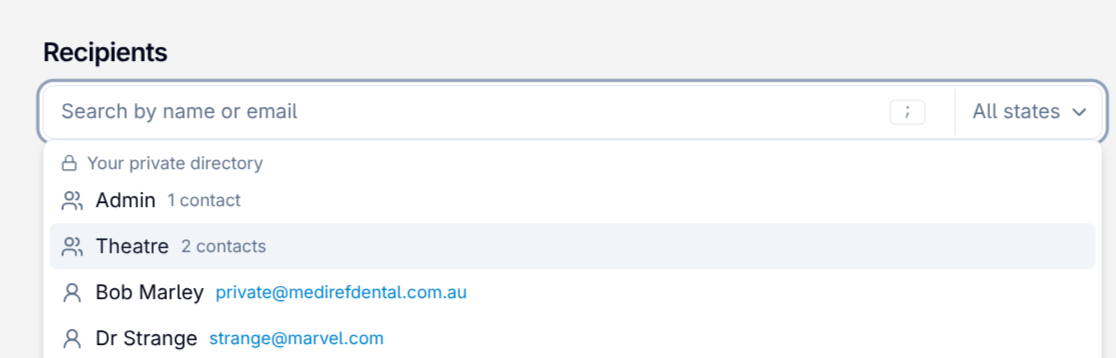
Save recipients such as hospital staff in an address book only your practice can see. When you add a recipient by email, switch on Private. They receive a secure link to your correspondence, and their details stay out of the shared Mediref directory.
Organise contacts into groups, such as a hospital’s theatre team, to add everyone to a correspondence at once. You can manage your contacts and groups under Settings > Contacts.
Let colleagues request to join your practice
Colleagues signing up for Mediref can now find your practice and request to join it, instead of creating a duplicate practice. You decide whether to give them access and what they can do.
Practice managers receive an email when a request arrives. Open Settings > Practitioners/Team > Requests to join to approve or decline it. Approving a request opens the permissions editor so you can choose their access.
Anyone with permission to manage the practice’s settings can now invite colleagues and manage their access too. If you prefer to keep your practice invite-only, turn off Let people ask to join this practice on the same page.
Choose who gets notified
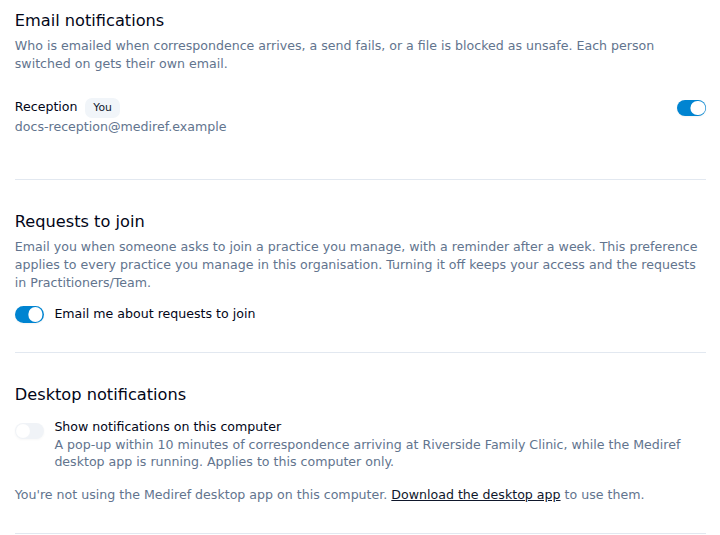
Choose which team members receive an email when correspondence arrives, a send fails, or a file is blocked as unsafe. Settings > Notifications has a switch for each person, and everyone selected receives their own email.
Anyone can turn their own email notifications on or off. Practice managers can also change them for other team members. Notifications about requests to join have a separate switch on the same page.
Using the Mediref desktop app? Desktop notifications show a pop-up within 10 minutes of new correspondence arriving. Click it to open the item. They’re on by default, and the setting applies only to that computer.
Control your practice’s directory listing
Choose which team email addresses appear in the directory under Settings > Practice details > Contact email(s). To list a shared mailbox such as reception, first invite it under Admin staff on Settings > Practitioners/Team.
You can also review corrections suggested by other practices before your listing changes. When someone suggests an update to your name, phone number, address or practitioners, Practice details in the sidebar shows a Review tag. Open Check your practice details to choose which changes to accept.
Get help without leaving Mediref
Open Help & support at the bottom of the sidebar to get help alongside the page you’re on. Search the help articles under Answers, or send us a message with attachments under Ask. You can also find the articles in the help centre.
New to Mediref, or showing a colleague around? Choose Take the tour from the menu under your practice name at the bottom of the sidebar for a walkthrough of the app.
Other improvements
- Easier date entry. Type dates of birth as day, month and year, or jump straight to a month and year in the calendar. Searches with an end date now include the whole of that day.
- Clearer password instructions. When correspondence needs an extra password, the recipient’s email shows your hint and your practice’s contact details above the button, so they know to ask you.
- Fewer duplicate listings. Adding a directory listing now warns you when a similar practice or practitioner is already listed nearby.
- Better correspondence tracking. You can restore a New tag you removed yourself. Correspondence sent to your own practice is marked as opened when you view it.
- Simpler settings. Settings pages have a flatter layout. To make your theme follow your computer’s setting again, press the highlighted light or dark theme button.
- Billing fixes. Practices paying by Link or BECS Direct Debit can now see their payment method on Billing and add another practice.
We also fixed Sent failing to load when the same practice appeared twice in a correspondence, and search failing on some older tagged correspondence.