This month Mediref became two-way: you can reply to, forward and request records inside the app. Each person in your practice can also have their own login.
Reply to correspondence
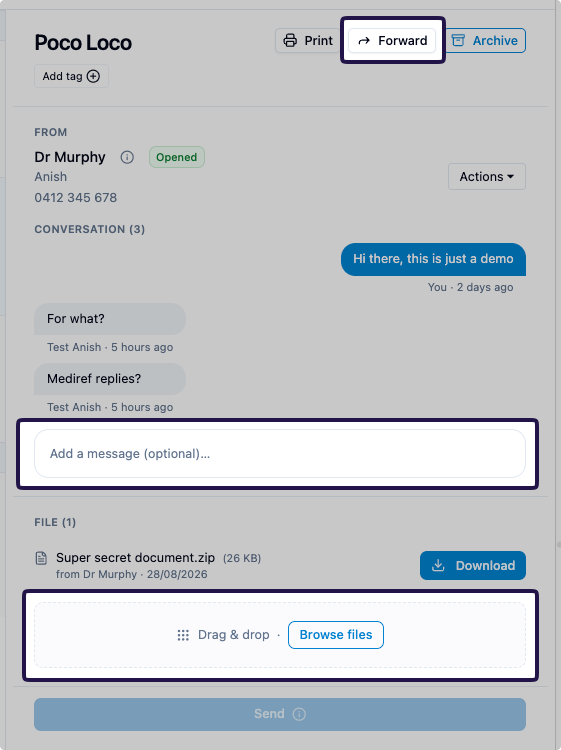
Each correspondence now opens as a single thread: the conversation with the other practice, its files and its messages. To reply, type in the Add a message (optional)… box at the bottom, add files if you need to, and press Send (or Ctrl+Enter).
Practices that don’t use Mediref can reply from their secure link, and so can patients. Their replies come back into your inbox in the same thread, and your Inbox and Sent lists show one row per thread, so a conversation stays in one place.
If you sent something and haven’t heard back, add a follow-up message or more files in the same thread. Replies to correspondence you received don’t count towards your plan’s sending. Correspondence sent to several practices at once can’t be replied to by its sender.
Forward files to another practice
Use Forward at the top of a thread that has files to send them to another Mediref practice. The forward gets its own copy of the files, so it still works if the original sender later deletes or revokes theirs. The original sender isn’t notified.
Request records
To ask another practice or your patient for records, open Compose and choose Request records instead of Regular correspondence. List each document you need, then press Send record request. They get an email listing the items, with a secure link to upload them.
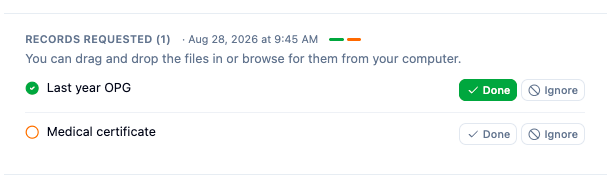
They mark each item Done or Ignore and add the files. Requests still waiting on an answer show a Waiting tag in your lists, and requests you still have to answer appear under Waiting in the sidebar.
Give each team member their own login
Invite colleagues by email from Settings > Practitioners/Team with Invite (or Settings > Members with Invite member if you have several practices). Each person gets their own login, and you choose what they can do: send and receive correspondence, change settings or manage billing.
Whoever manages your team can also turn on Require two-factor authentication for everyone; Mediref tells you first how many members still need to set it up. When more than one person sends from a practice, the thread shows who sent each item (Sent by …).
Work across several practices with one login
If your login has access to more than one practice, a practice switcher appears at the top of the sidebar, so you can move between them without signing out. Open a link to correspondence from another of your practices and Mediref switches to it for you.
To open another practice under the same account, go to Settings > Add a practice; it’s billed to your existing account. Once you have more than one, that page becomes Settings > Practices, where you can also close a practice, saying whether it is closing down or changing hands.
Smaller improvements
- Email fields suggest corrections for likely typos (Did you mean …?) and warn you when a domain can’t receive email or an earlier email to that address bounced.
- Patient names can be up to 100 characters, so long names are no longer cut short.
- You can send and receive 7z archive files.
- An out-of-date desktop app asks you to update and links straight to the right installer.