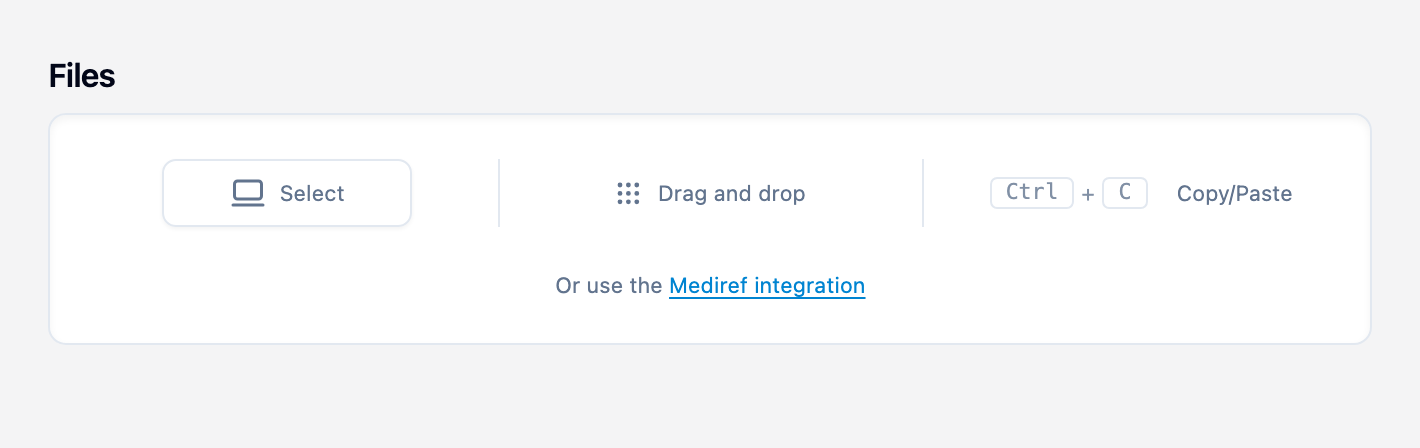
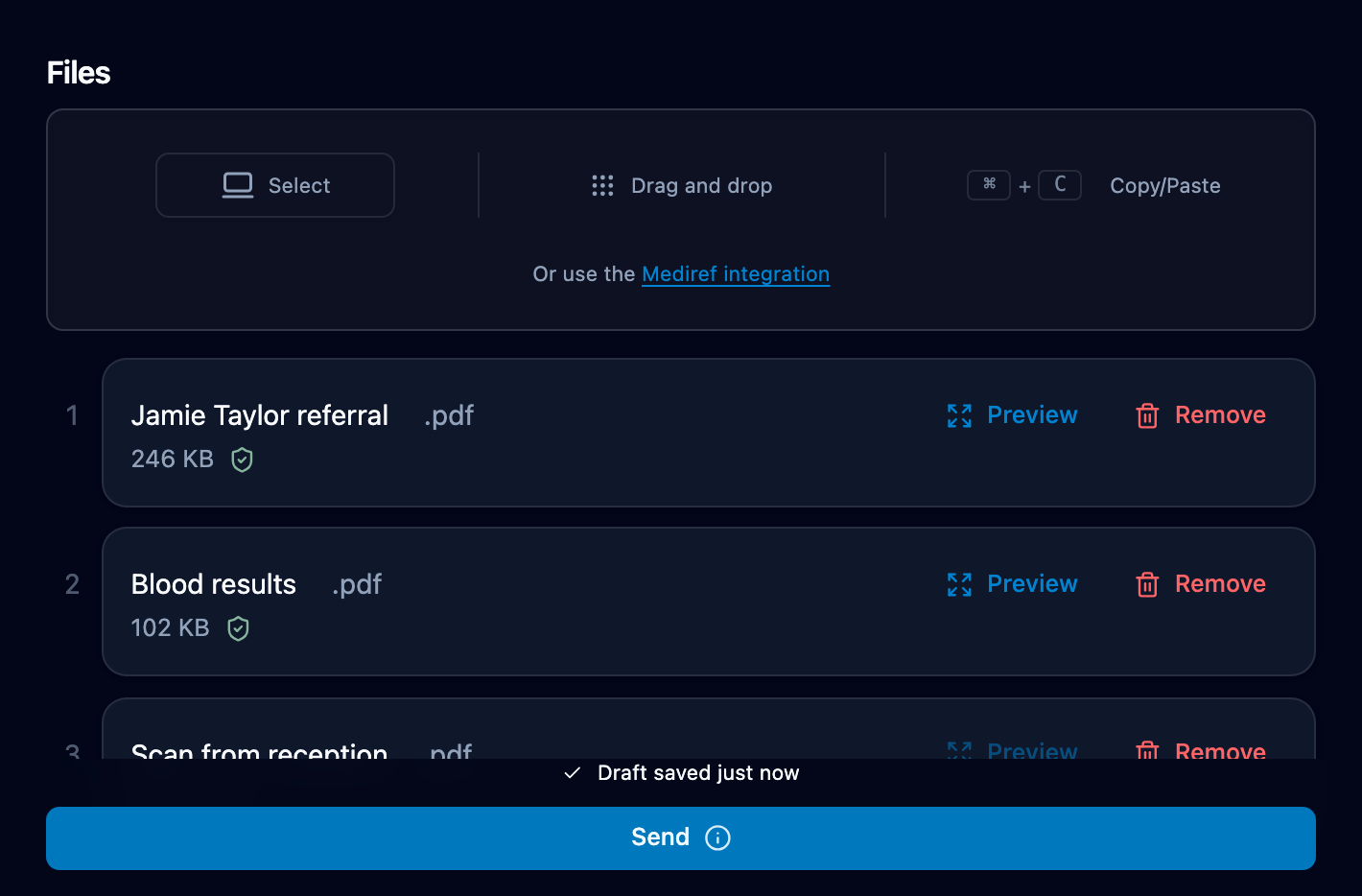
Gets a stuck file onto your correspondence. Use it when a file in Compose shows a red cross or never finishes going up.
Mediref accepts PDFs, Word and Excel documents, images (JPEG, PNG, TIFF), X-ray files (DICOM) and zip files. Anything else: print or export it to PDF from your practice software and send that instead.
Steps
- Click Remove on the file with the red cross. There’s no try-again button, and Mediref won’t send while a file has failed — Failed upload(s). Please retry or remove failed files.
- Check the file opens on your computer, and close it in any other program that has it open.
- Add the file again and wait for the green shield beside it before you click Send.