Takes you from a blank Compose page to a sent correspondence sitting in your Sent list.
Steps
- Press G then C, or click Compose in the sidebar.
- Fill in Patient — the name, and the date of birth if you’re using it as an extra password. See Add patient details.
- Under Recipients, search the directory for who’s receiving it. See Add recipients.
- Under Files, click Select, drag files anywhere onto the page, or paste them straight from your clipboard. Click a file’s name in the list to rename it before you send.
- Press Ctrl+Enter (Cmd+Enter on a Mac), or click Send.
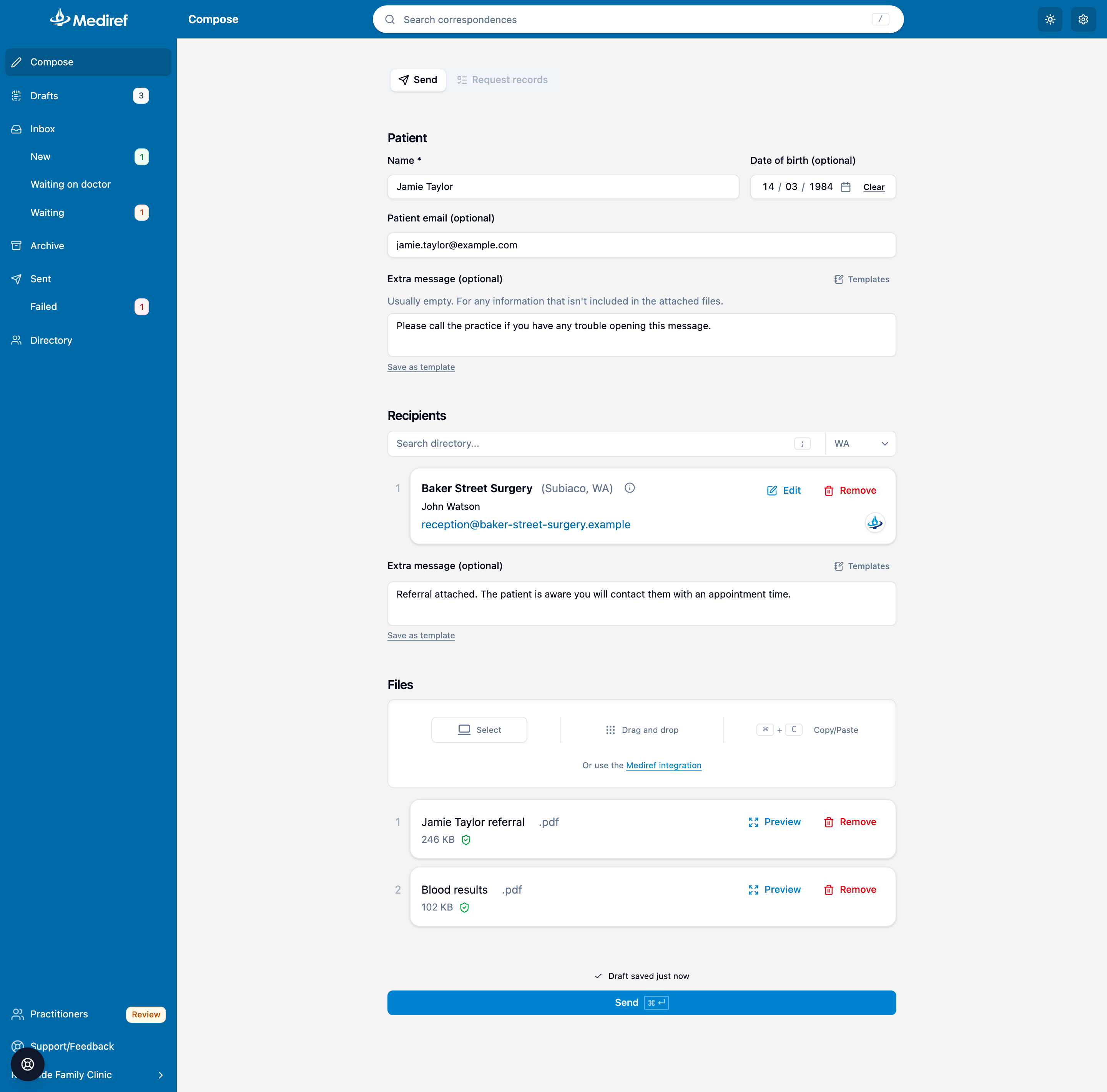
A message on its own is enough to send — you don’t need both files and recipients, and the patient’s email address can be the only destination. Templates at the top right of the message box reuses wording you’ve saved; see Use message templates.
Request records beside Regular correspondence at the top turns the correspondence into a checklist of documents you need back — see Request records.
Compose then clears itself ready for the next correspondence rather than taking you to Sent. Mediref recipients get it in their Mediref inbox; everyone else gets an email with a secure link. Watch delivery in Sent — see Understand sent statuses.