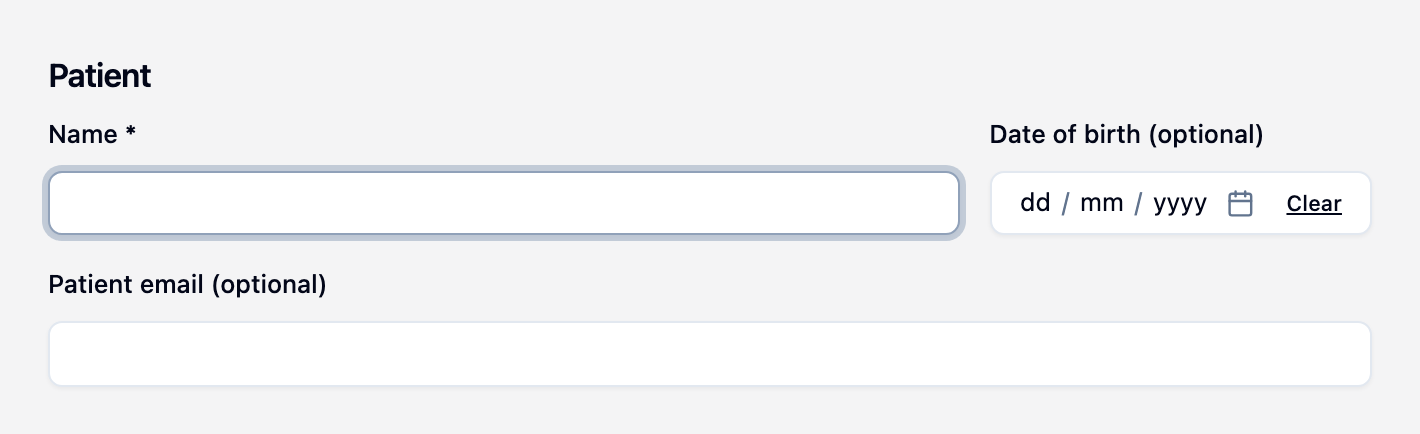
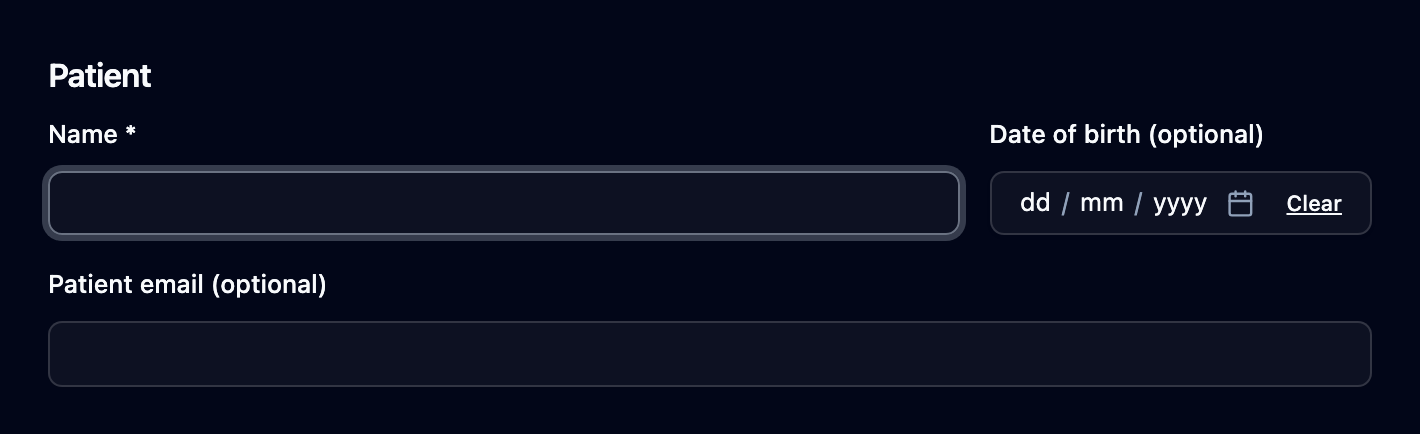
Fills in who the correspondence is about, so everyone who receives it can match it to the right patient. The Patient section sits at the top of Compose.
Steps
- Copy the patient’s name and date of birth out of your practice software and paste them anywhere on the Compose page — Mediref pulls the date out into Date of birth. Paste both into Name and the date is split out when you click away from the field.
- Type the patient’s email into Patient email (optional) only if the patient should get their own copy — see Send a copy to the patient. Leave it blank if they shouldn’t.
- Use Extra message (optional), which appears once that address is valid, for a short note to the patient.
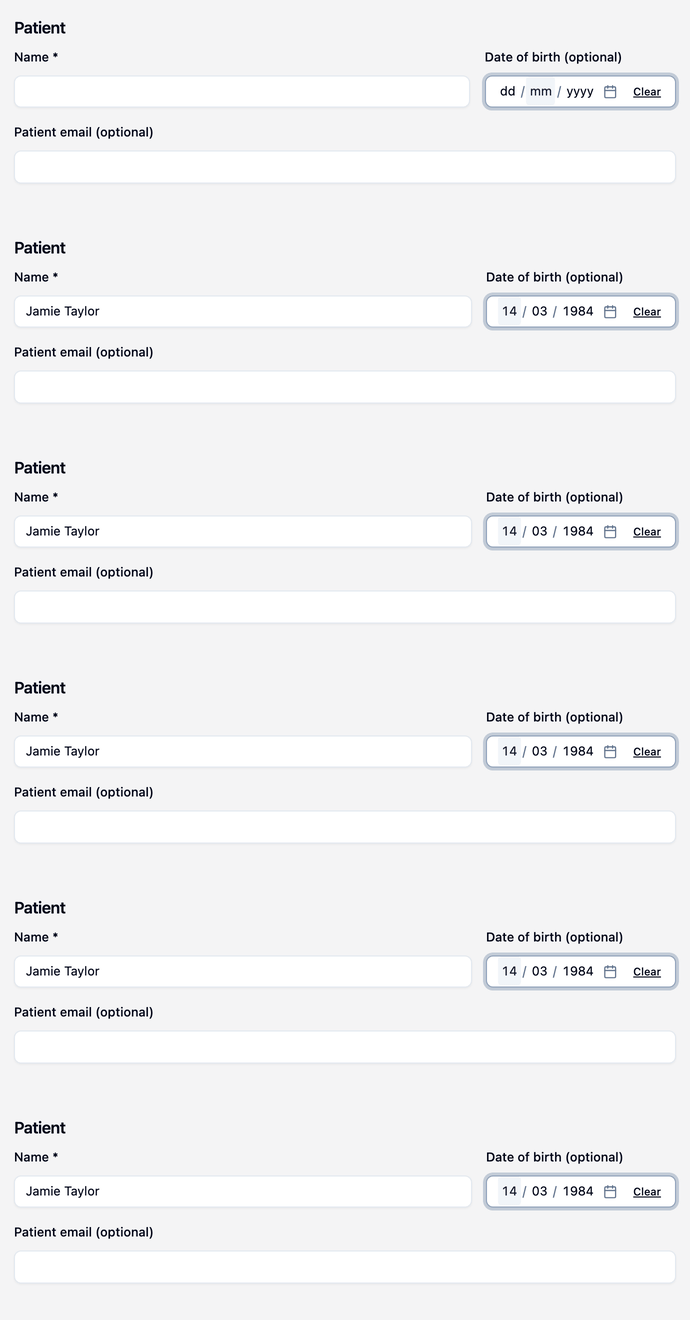
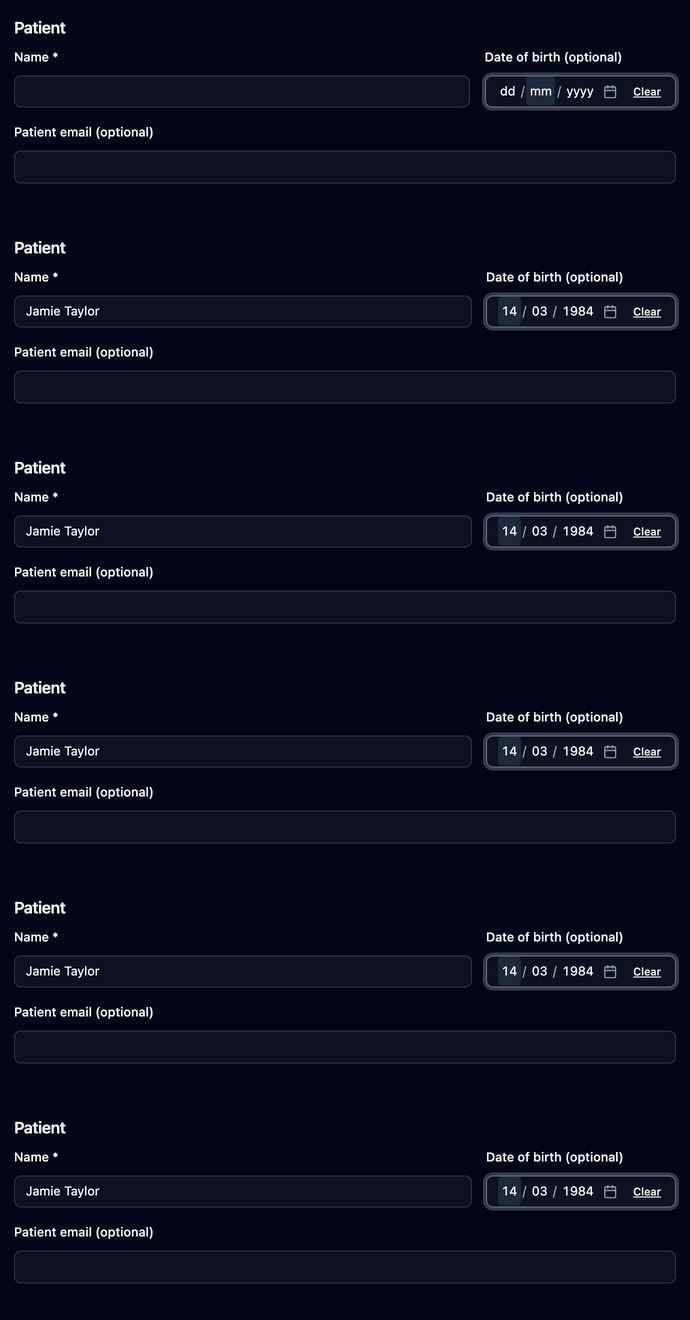
Name should match the spelling in your practice software. Date of birth reads (optional) until the date of birth is being used as the extra password, when it becomes Date of birth* (required). Clear, on the right of the field, empties it.