Saves a message you type often, so you can drop it into a correspondence in one click.
Create a template
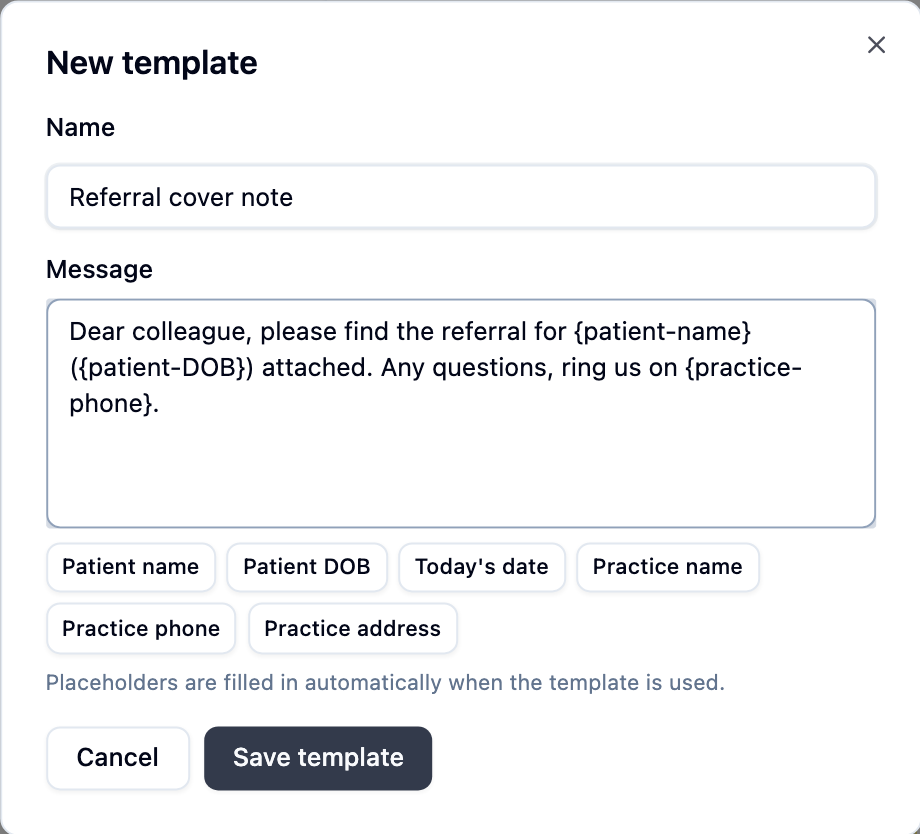
- Go to Settings → Correspondence and click New template under Message templates.
- Give it a short Name you’ll recognise in a list later, such as Referral cover note.
- Type the wording in Message and click Save template.
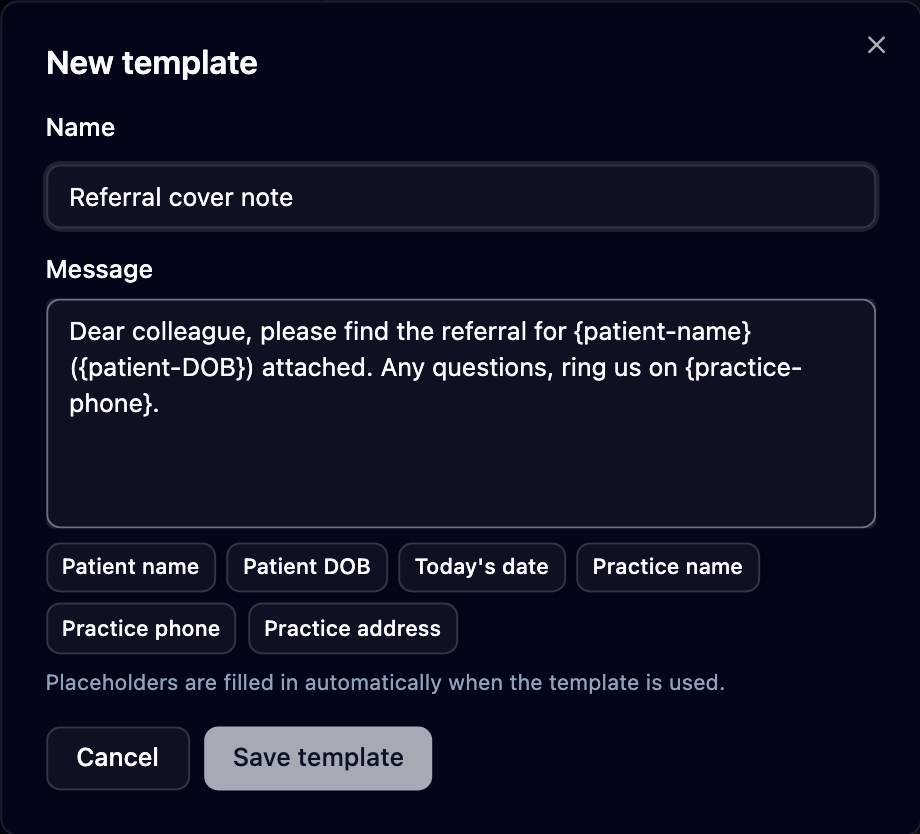
Six buttons under Message — Patient name, Patient DOB, Today’s date, Practice name, Practice phone and Practice address — drop a placeholder like {patient-name} in at the cursor. Mediref swaps it for the real detail, so one template works for every patient:
Dear colleague, please find the referral for
{patient-name}({patient-DOB}) attached. Any questions, ring us on{practice-phone}.
The star beside a saved template marks it Default, so that wording is already in the recipients’ message box every time you start a new correspondence.
Use one while composing
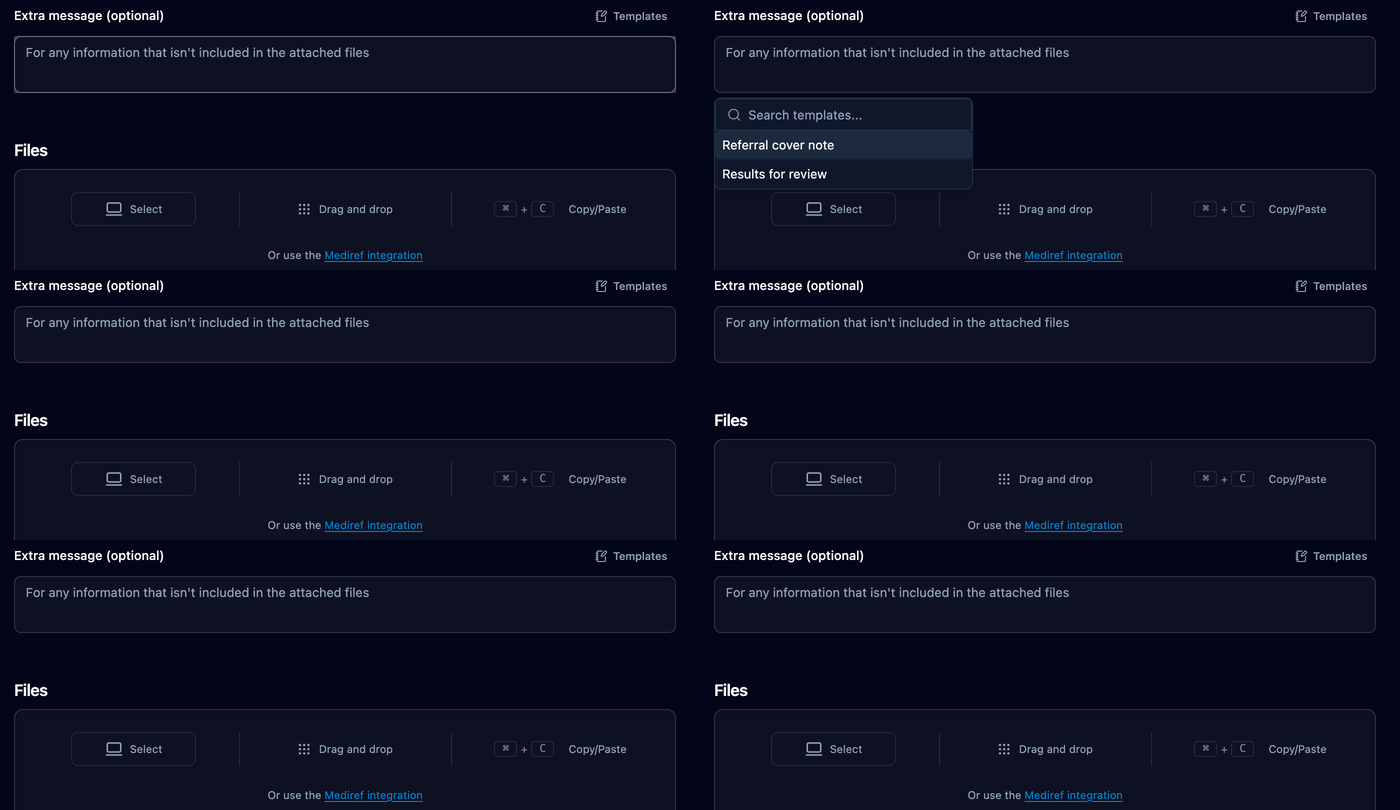
In the Extra message (optional) box, press / while it’s empty and type a few letters of the template name, or click Templates in the box’s top right corner. The wording drops straight in and you can change it before you send.
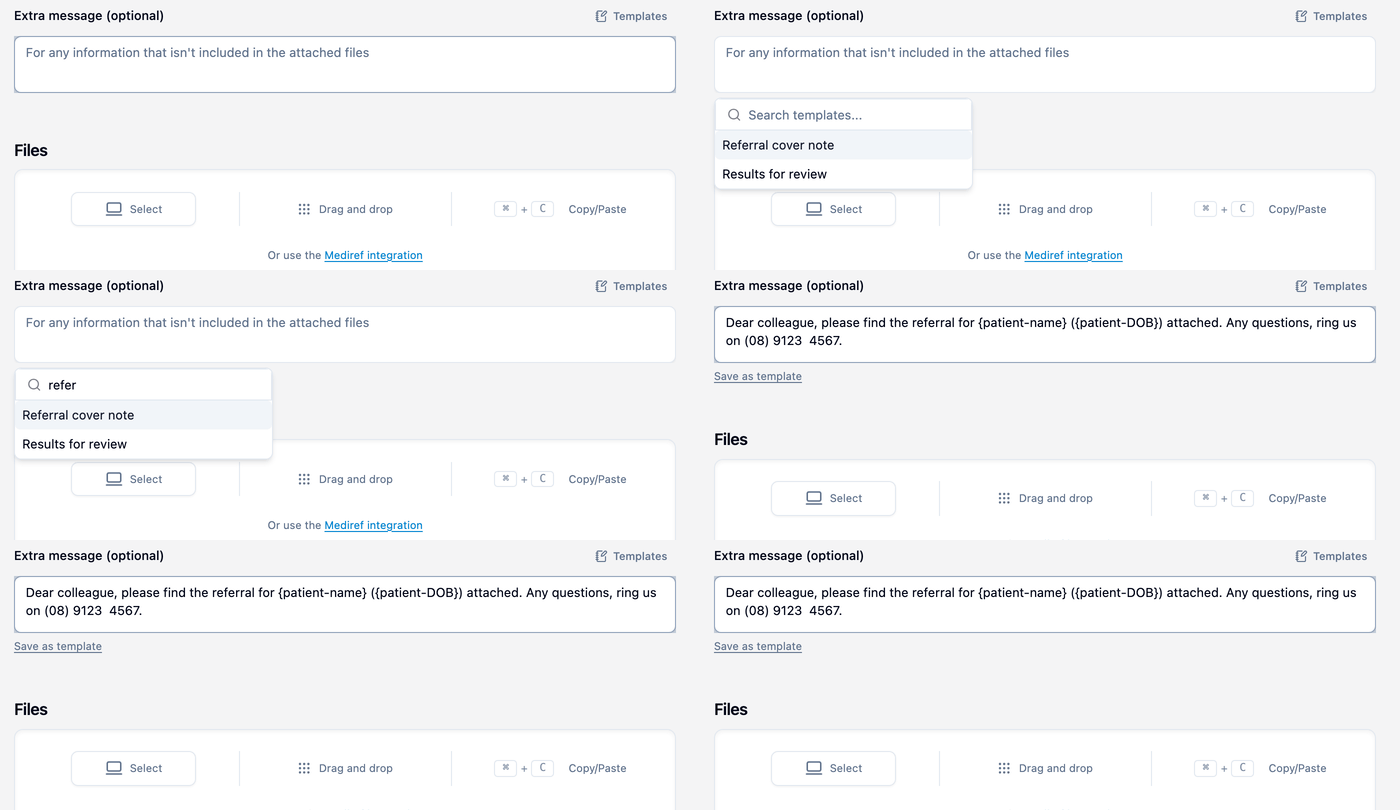
To keep a message you’ve already typed, click Save as template underneath the box — it appears once the message is a few lines long.