Chooses who receives the correspondence you’re composing.
Steps
- In Compose, click into Search directory… under Recipients. Before you type anything it lists your favourites.
- Type the practice or practitioner name.
- Press Enter to add the highlighted result, Shift+Enter to add them and send in one go, or click the right match. Entries showing the Mediref logo receive it directly in their inbox.
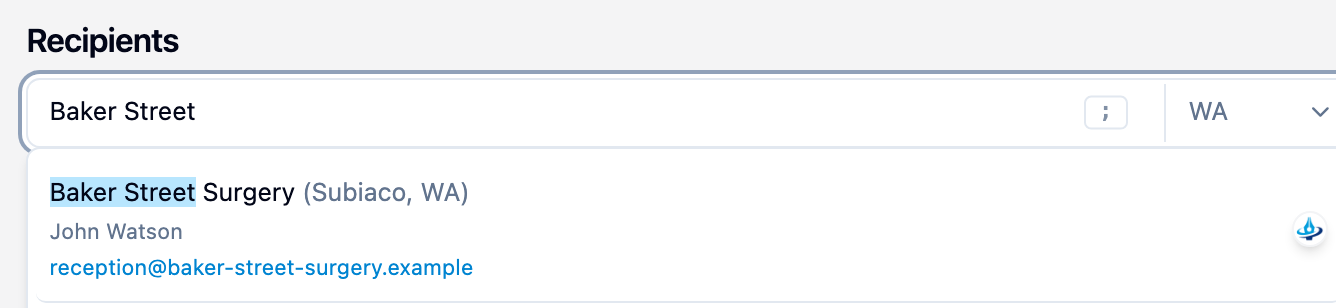
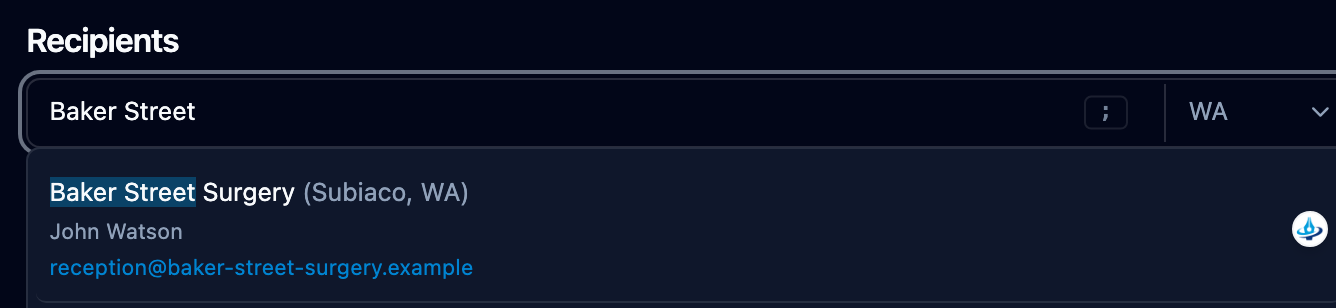
Nobody in the directory? Scroll to Add new at the bottom of the results and click Practice: what you typed or Practitioner: what you typed. Typing an email address instead of a name puts an Email: address row at the top of the list. Recipients added this way receive a secure link by email rather than the correspondence landing in a Mediref inbox. Sending adds them to the Mediref directory, where other practices can find them once Mediref confirms it’s a real practice, unless you keep them private.
Keep a recipient private
Switch on Private beside any recipient who isn’t on Mediref to save them to your practice’s own contacts instead of the Mediref directory. No other practice can see or search them, and they still receive a secure link by email. Your private contacts and their groups are listed under Your private directory at the top of the search results; picking a group adds everyone in it.
Settings → Contacts lists them. Add contact takes a name, an email, and any groups, separated by commas. Anyone you send to as a private contact is added there automatically.
There’s no extra password setting on an individual recipient. One setting in the Patient section covers the patient and every recipient who isn’t on Mediref — see Use an extra password.