Sends a checklist of the records you need, so the other side can tick items off and send them back to your Inbox.
- A request goes to one practice or to the patient, never both.
- Files are optional on a request, so you can send a blank form to be filled in, or nothing at all.
- The request shows an orange Waiting tag in Sent until every item on the list has been marked Done or Ignored.
- Their answers arrive as replies to the request and carry the New tag like any other correspondence.
Steps
- Press G then C, or click Compose in the sidebar, and fill in the patient and recipient as usual.
- Click Request records beside Regular correspondence at the top of the page.
- Under Records to request, type each record you’re after and press Enter or click Add. Up to 20 items.
- Click Send record request.
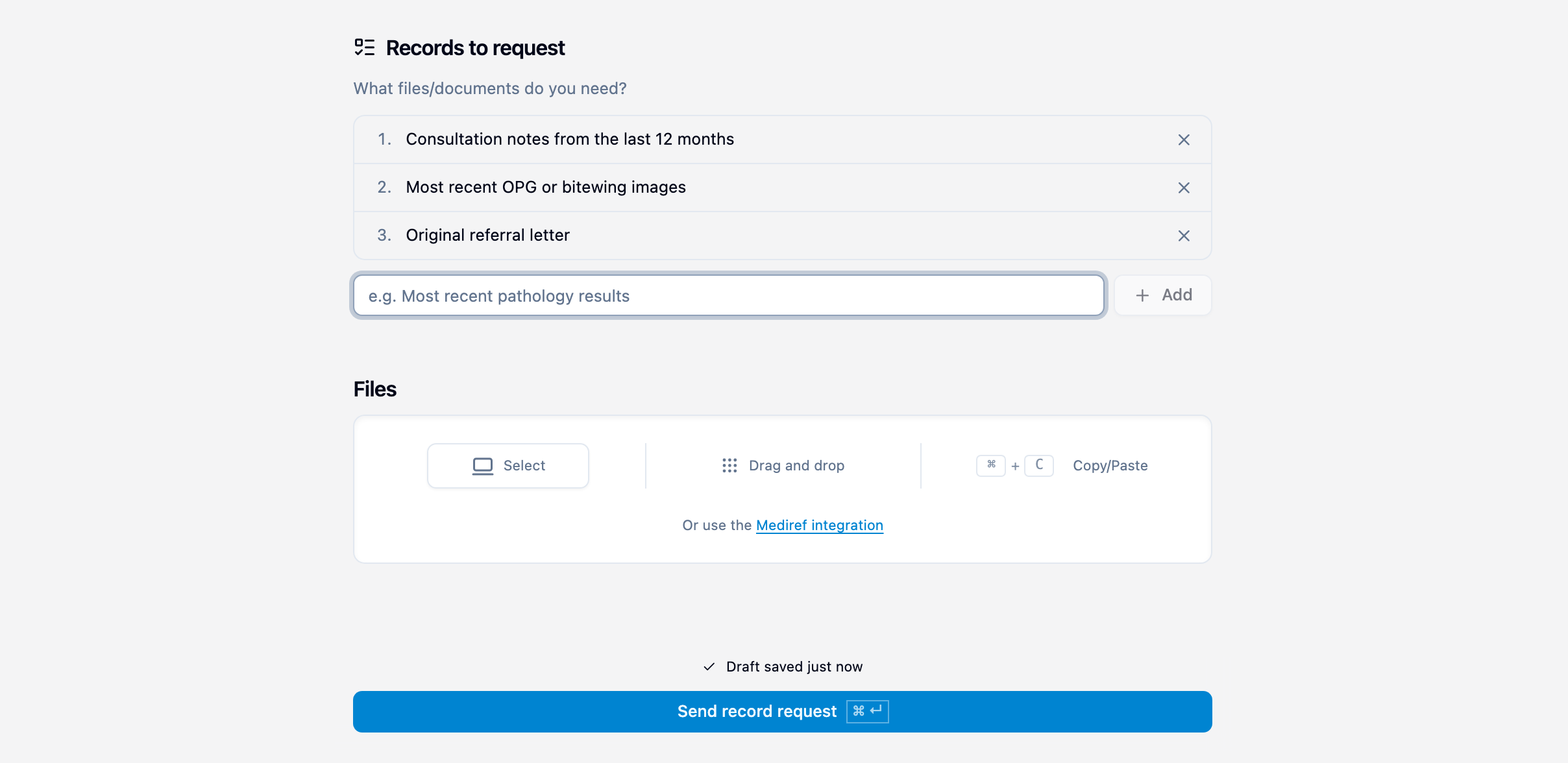
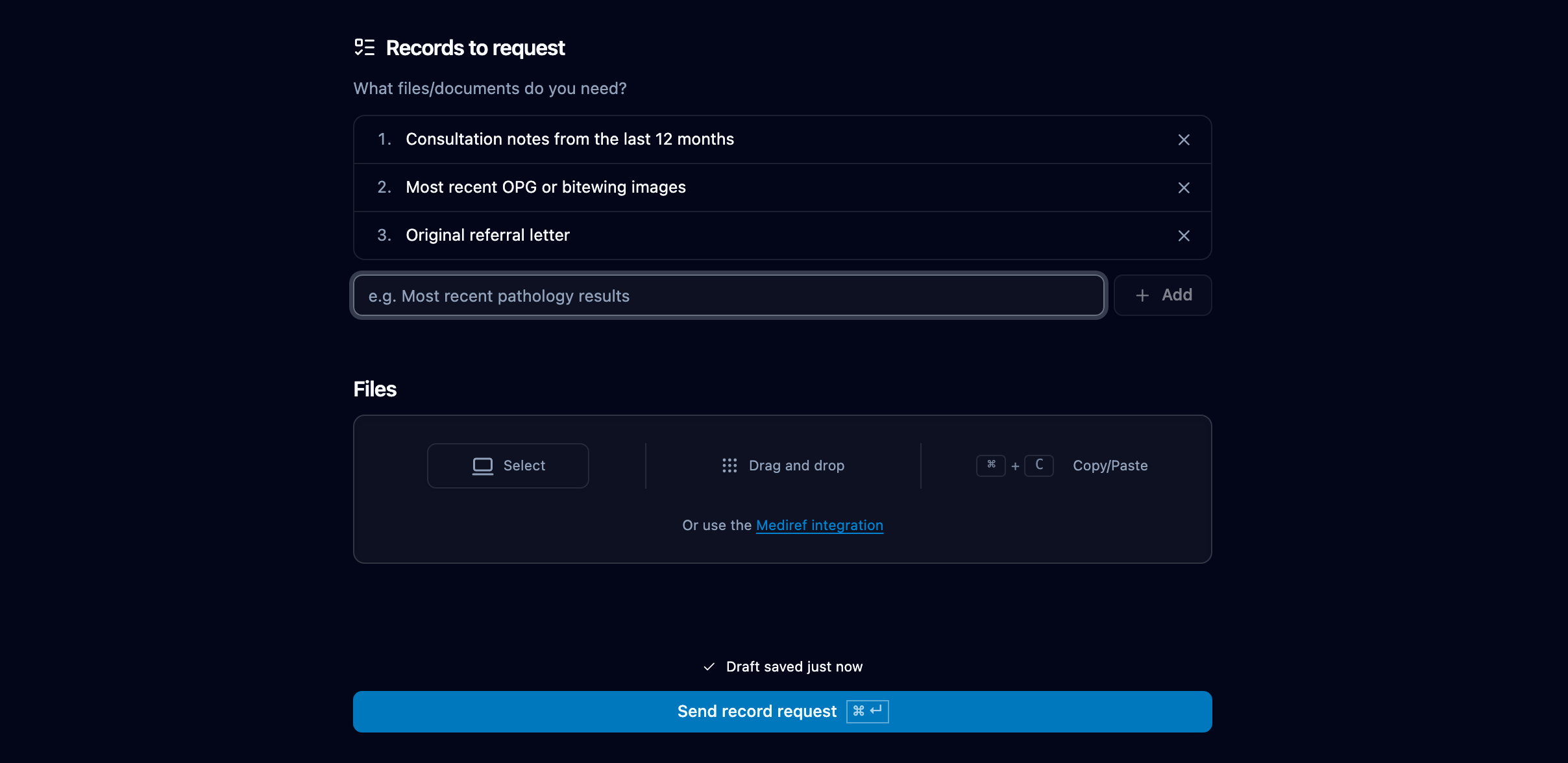
Switching back to Regular correspondence keeps your list, so nothing is lost if you click the wrong button. The recipient gets an email headed “Record request from your practice” with the numbered list in it, or sees it in their Mediref inbox.
Track what’s outstanding
Open the request in Sent. Records requested shows each item as Pending, Done or Ignored, with the date it went out. The double tick beside the recipient’s name turns from orange to green once they’ve answered every item. To see every request still waiting, choose Waiting from the tracking filter at the top of Sent.