Answers a correspondence without starting a new one, so the whole exchange stays together under the one patient.
- Replies go straight to the other practice’s Mediref inbox, or to the same secure link they already have.
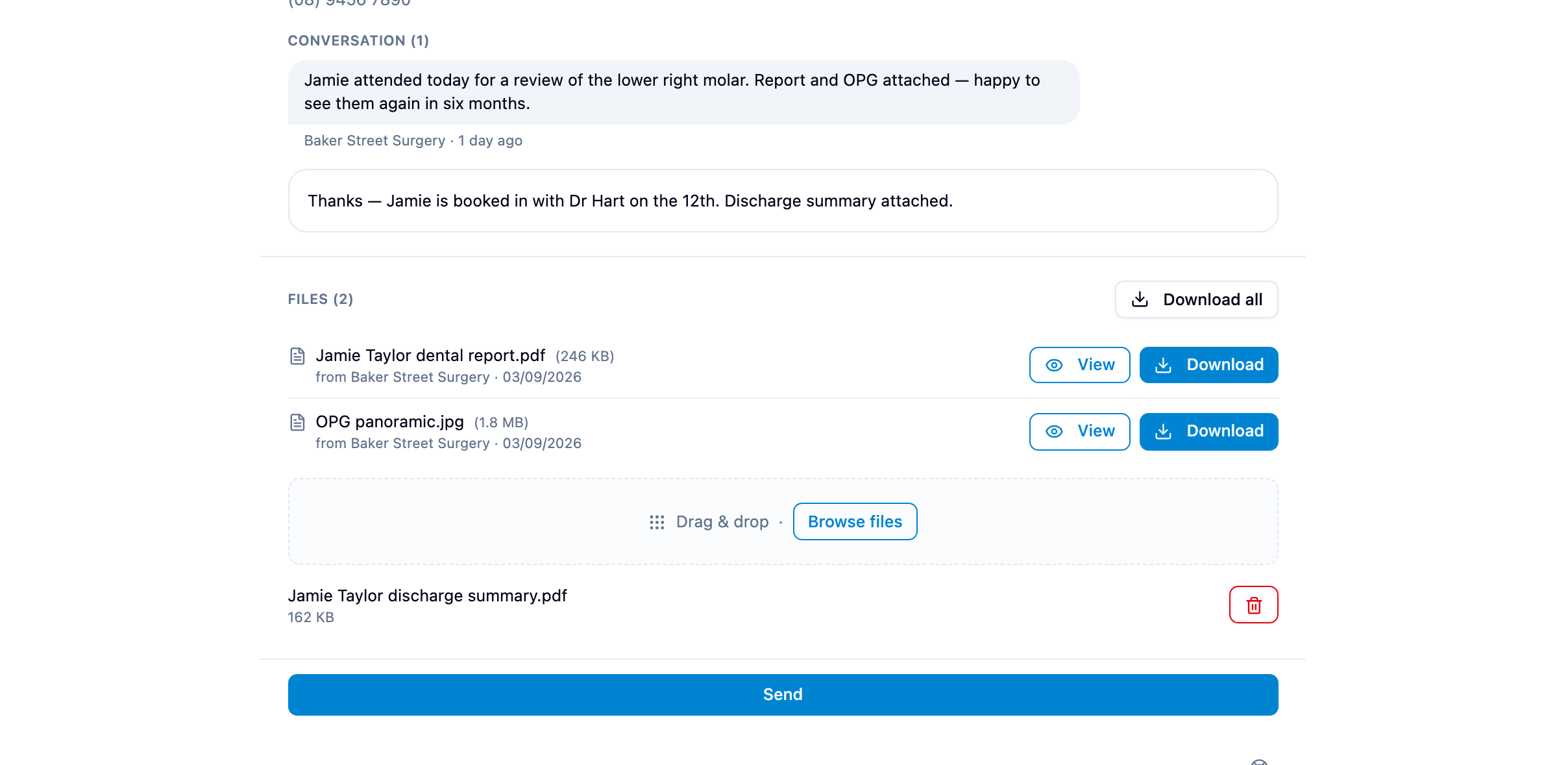
- Every reply and file in the exchange shows on the one page, under Conversation and Files.
- A reply you receive gets the green New tag and brings the correspondence back to the top of your Inbox, even if you’d archived it.
- Replies you send to correspondence you received don’t count towards your plan’s sending limit.
Steps
- Open the correspondence in Inbox or Archive.
- Type in the message box under Conversation, and drop files anywhere on the page or click Browse files under Files.
- Press Ctrl+Enter (Cmd+Enter on a Mac), or click Send at the bottom of the page.
You can also reply to something you sent, once the other practice has answered it. If they haven’t yet, the same message box sends a follow-up instead.