Sends the records another practice has asked your practice for, ticking off each item as you go.
- A request waiting on you carries an orange Waiting tag in your Inbox, and the sidebar shows a Waiting entry under Inbox while there’s at least one.
- Records requested (N) on the correspondence counts the items you haven’t answered yet.
- Nothing links a file to an item. Attach the files, then mark each item so the other practice knows the list is complete.
Steps
- Open the request from Inbox or click Waiting under Inbox in the sidebar.
- Under Records requested, click Done beside each item you’re sending, or Ignore for anything you don’t have or won’t provide. Clicking an item’s text opens the file picker.
- Add the files by dropping them anywhere on the page or clicking Browse files under Files, and type a message if one is needed.
- Click Send at the bottom of the page. If you’ve only marked items and attached nothing, the button reads Save.
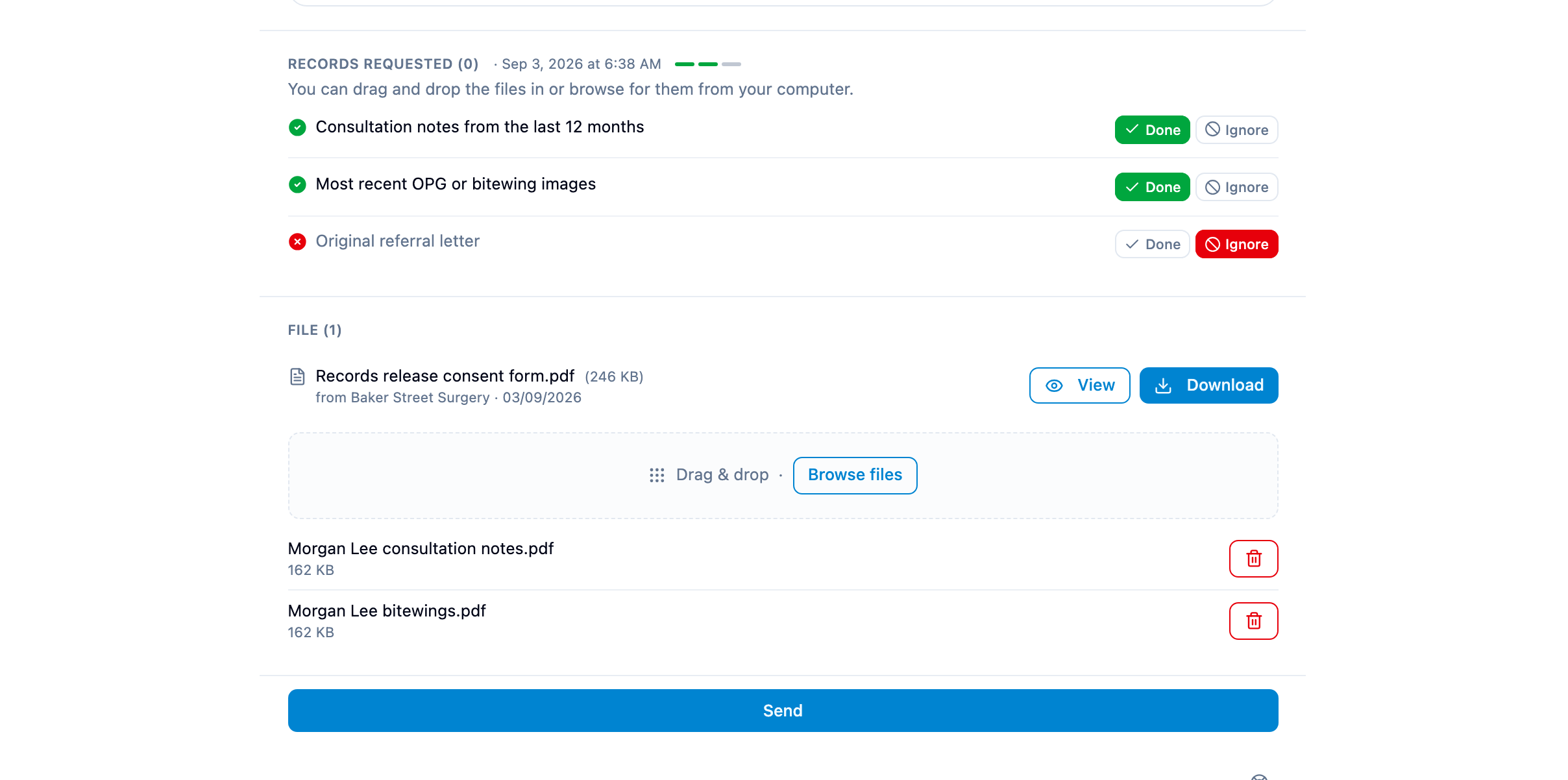
The bullet beside each item goes green for Done and red for Ignored, and the Waiting tag clears once every item has an answer. You can answer in stages: mark and send what you have today, and the rest of the list stays open.