Opens correspondence another practice has sent you, and saves the files onto your computer.
Steps
- Press G then I, or click Inbox in the sidebar. The green badge counts your new items.
- Click an item carrying the green New tag. The tag clears once the item is opened — see Organise your inbox with tags to change that.
- In Files, click View to read a file on screen, Download to save one, or Download all to save the lot in one go. Download all only appears when there’s more than one file, and View only for images and PDFs.
- Click Archive when you’re finished. Nothing is deleted — the correspondence moves to your Archive list, and your Inbox stays a to-do list rather than a pile.
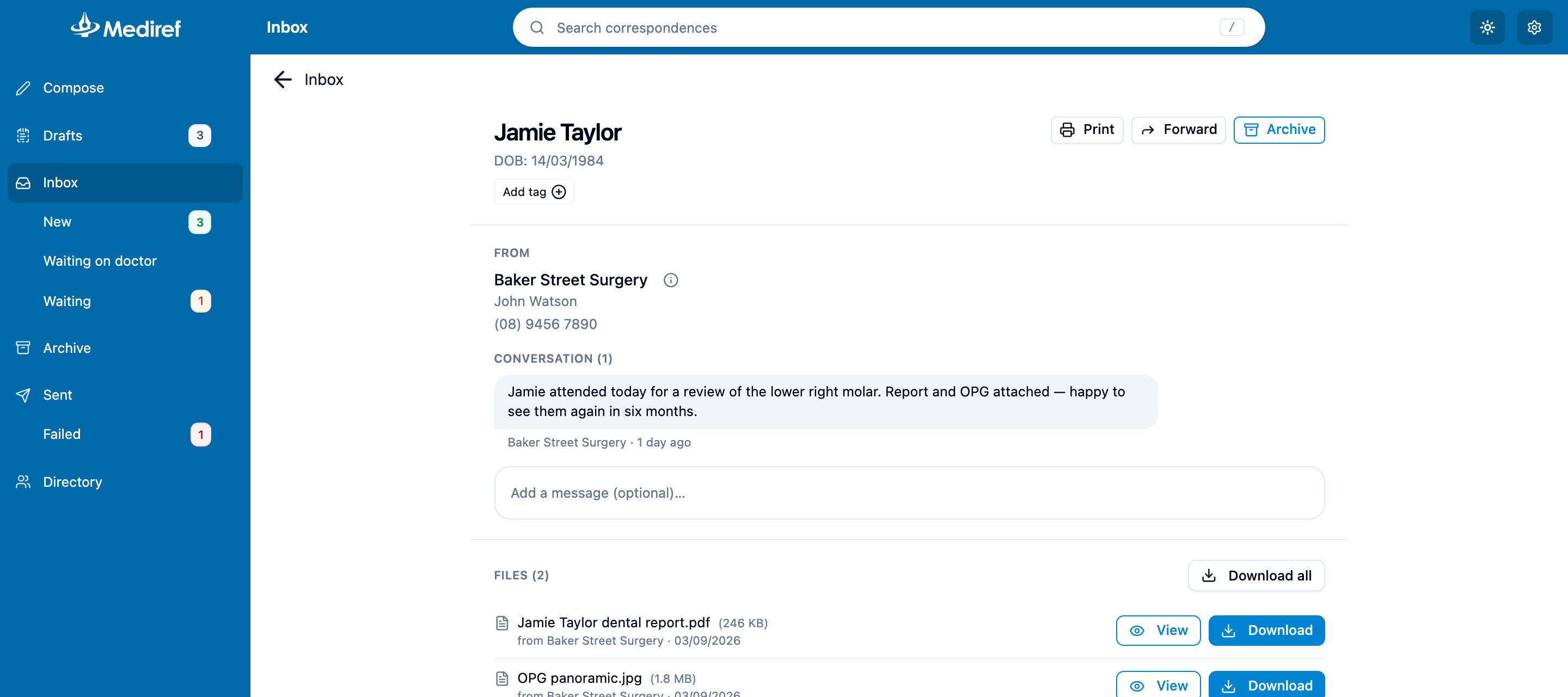
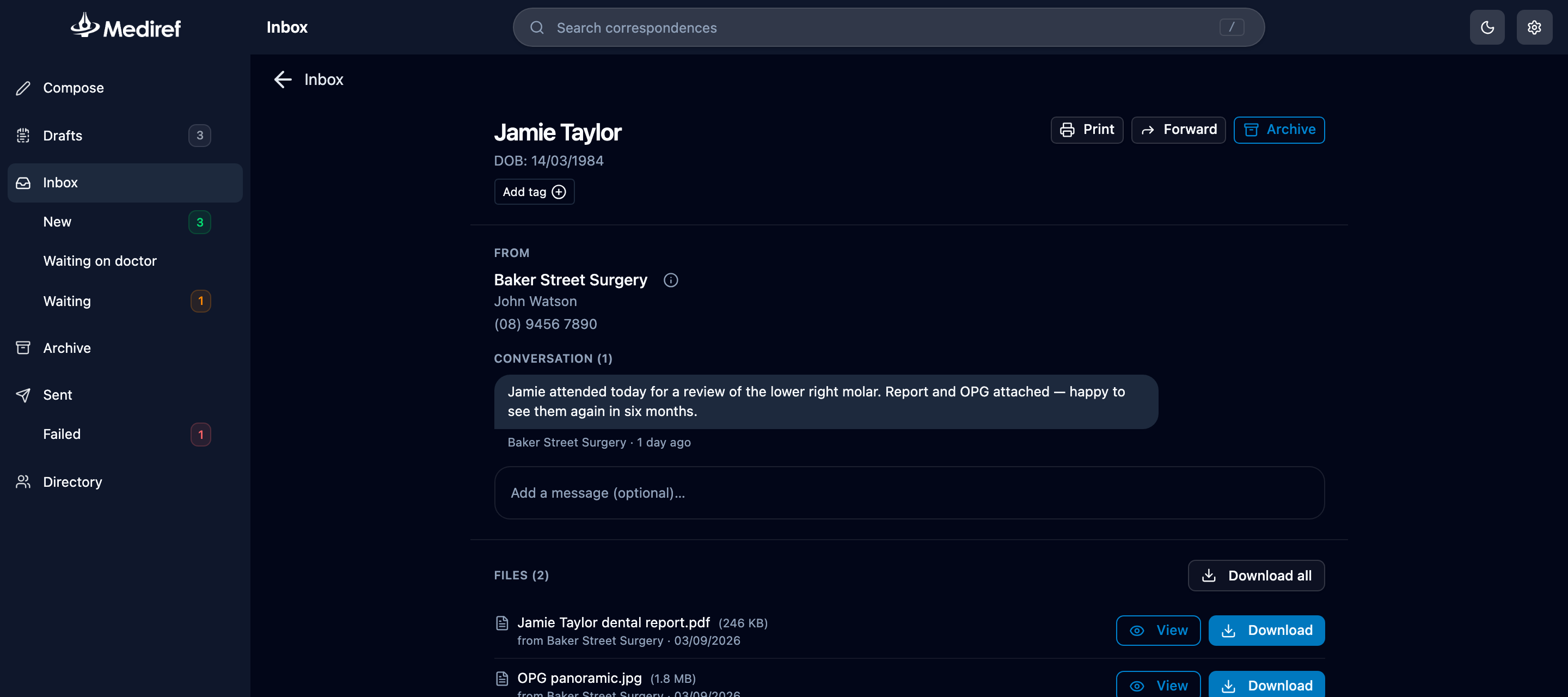
From carries the sending practice’s practitioners and phone number, in case you need to ring them back; the small i beside their name holds the rest of their contact details. A file marked Deleted or Automatically deleted has been removed by the sender and has no buttons left, so ask them to send it again.
The button at the right-hand end of the filter bar swaps between Split view, which keeps the list on one side and the open correspondence on the other, and Full list view, which gives the whole width to the list with more detail on every row. Mediref remembers your choice on that computer only, so a colleague’s screen can be set differently. Both let you tick several rows at once and archive a batch together.
To write back, type in the message box under Conversation and click Send — see Reply to correspondence. Replies you receive carry the New tag and bring the correspondence back into your Inbox.
Downloads go to your browser’s own Downloads folder, or in the Mediref desktop app to wherever your download location is set — see Desktop app settings.