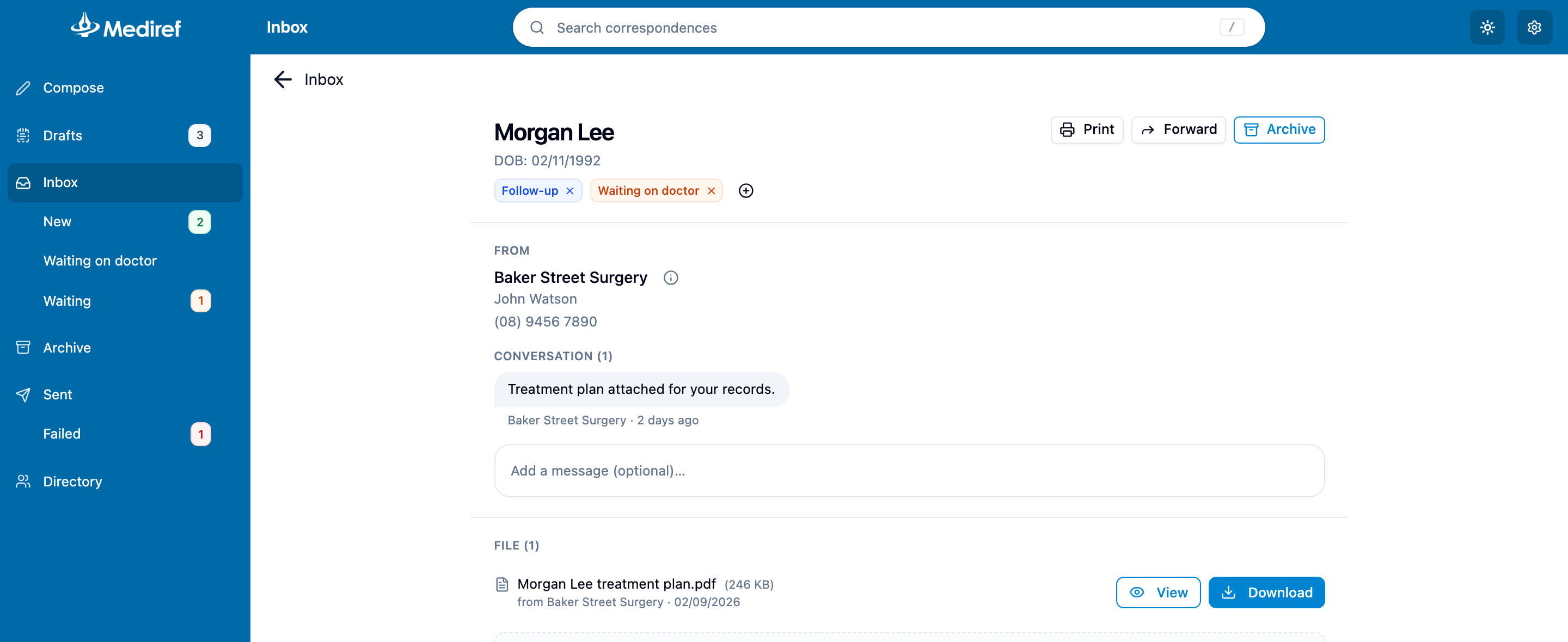
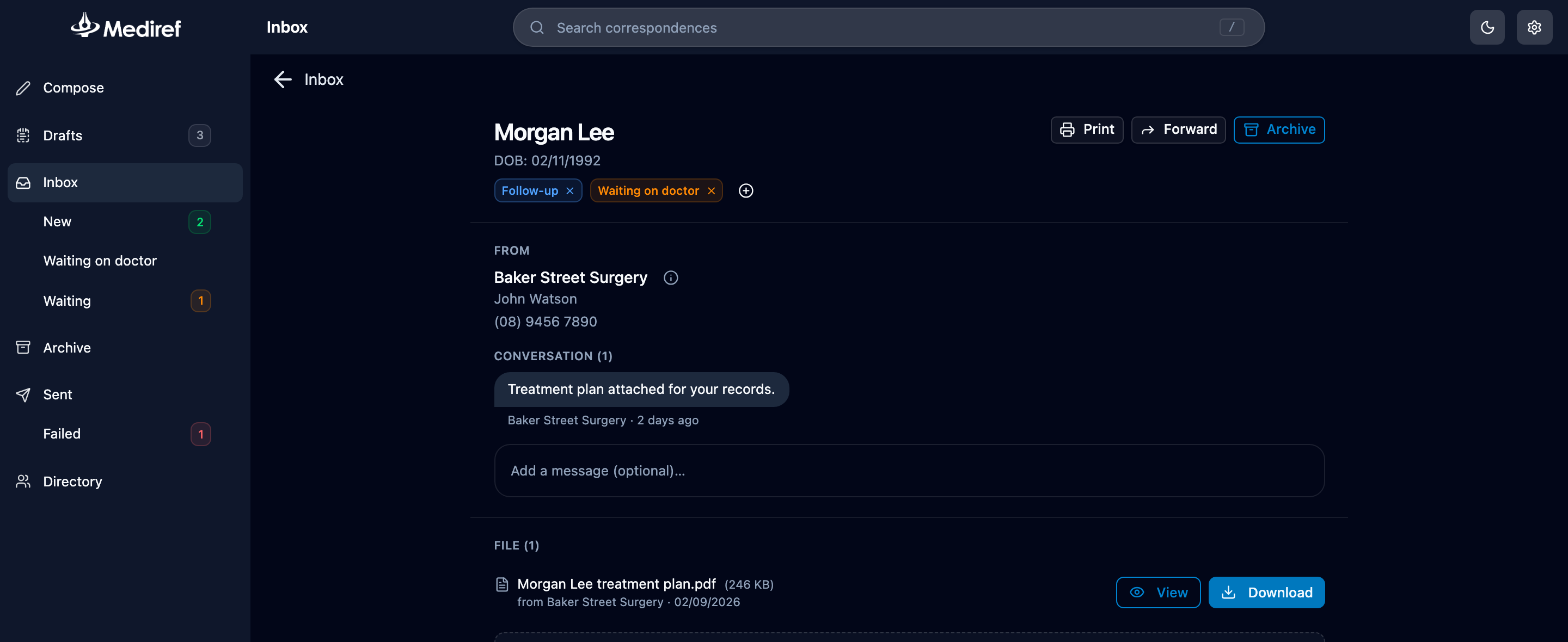
Puts your practice’s own labels on incoming correspondence — a tag for “To file”, one for “Waiting on doctor”, or one per practitioner. Tags belong to the practice, not to you, so a tag means the same thing on everyone’s screen.
The New tag
Every correspondence that arrives gets a green New tag, which clears itself the first time somebody opens the item. If your practice treats the New tag as a to-do list, turn that off and the tag stays until someone removes it or archives the correspondence.
Your setting
Log in to see and change this setting right here in the article.
In full list view, scrolling past a row is enough to clear its New tag, even though nobody has read the correspondence. In split view the tag only clears when someone opens the item. If the New tag is your to-do list, stay in split view or turn the setting above off.
Your own tags
Create them in Settings → Correspondence, under Inbox organisation: type a name into Name of new folder/tag, pick a colour — Blue, Red, Green, Yellow, Purple or Orange — and click Add. The X on a tag under Currently existing tags deletes it.
To use one, open an Inbox item and click Add tag, beside the tags under the patient’s name. The Tags button above the list then shows only items carrying a tag, so each tag works like a folder.