The tracking label and delivery log in Sent show how far your correspondence got, and Resend gets it the rest of the way.
Whenever a delivery fails, a Failed shortcut with a red count appears under Sent in the sidebar, listing every correspondence that didn’t get through.
Steps
- Open the correspondence from Sent and read the recipient’s tracking label.
- Opened — someone at their end has opened it. Ask them to check with their colleagues and search their email for “Mediref”.
- Sent — it reached them but nobody has opened it. Ask them to search for “Mediref” and look in spam, junk, quarantine and deleted items. Practice mail systems often quarantine rather than junk.
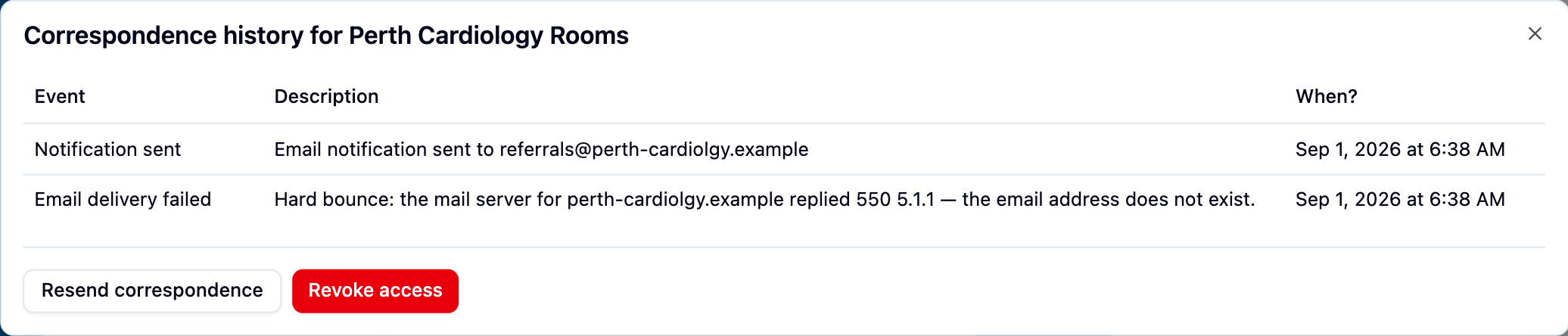
- Failed — it never arrived. Almost always a wrong email address.
- Click the label to read the delivery log. A returned email reads something like “Email to address bounced. Message from the email servers: reason.”
- Read the email address back to the recipient over the phone, letter by letter.
- Choose Actions → Resend, correct the address, then click Send. The label changes to Opened the moment they open it, so you can confirm it worked while they’re still on the phone.
If you end up posting, faxing or phoning it through instead, choose Actions → Sent alternatively to turn the label yellow. That choice only appears once the label reads Failed.