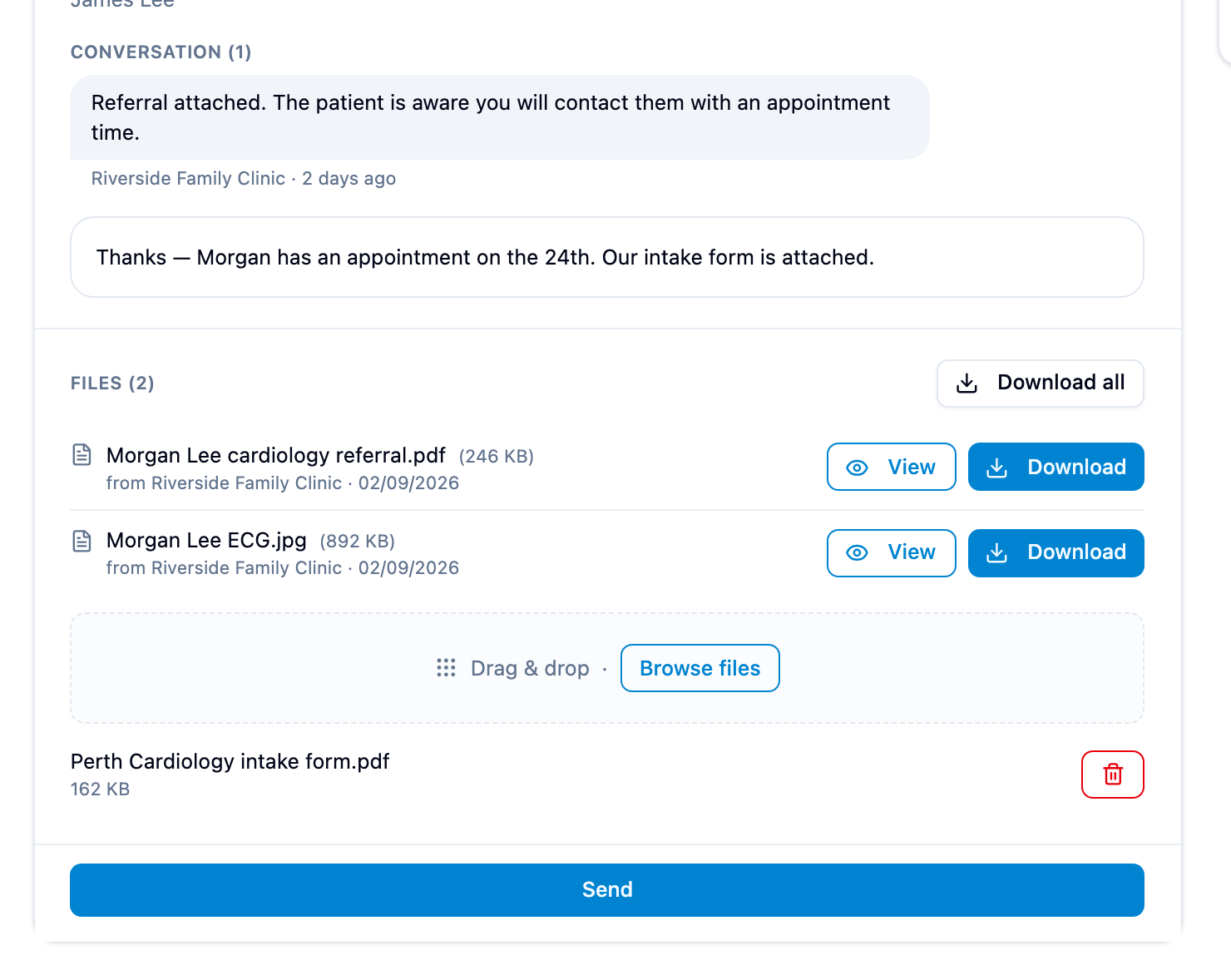
Sends a message or files back to the practice, from the same page you opened their correspondence on. No account, no email to write.
- Your reply lands in the practice’s Mediref inbox. You don’t get a confirmation email.
- The same link keeps working after you reply, and shows the whole conversation, until your access runs out.
- Up to 20 files per reply, the same types and sizes the practice can send you.
Steps
- Open the secure link from the email, and enter the extra password if asked.
- Type in the message box under Conversation, or drop files anywhere on the page or click Browse files under Files.
- Click Send at the bottom of the page.
If the practice has asked for records
Records requested lists what they’re after. Click Done beside each item you’re sending, or Ignore for anything you can’t provide, attach the files, and click Send. Clicking an item’s text opens the file picker. Send stays greyed out until every item has an answer.