Printing to the Mediref printer sends a document straight out of another Windows program. The Windows installer adds the printer — see Install Mediref on Windows.
Steps
- Open the document, choose Print, select the Mediref printer, and click Print.
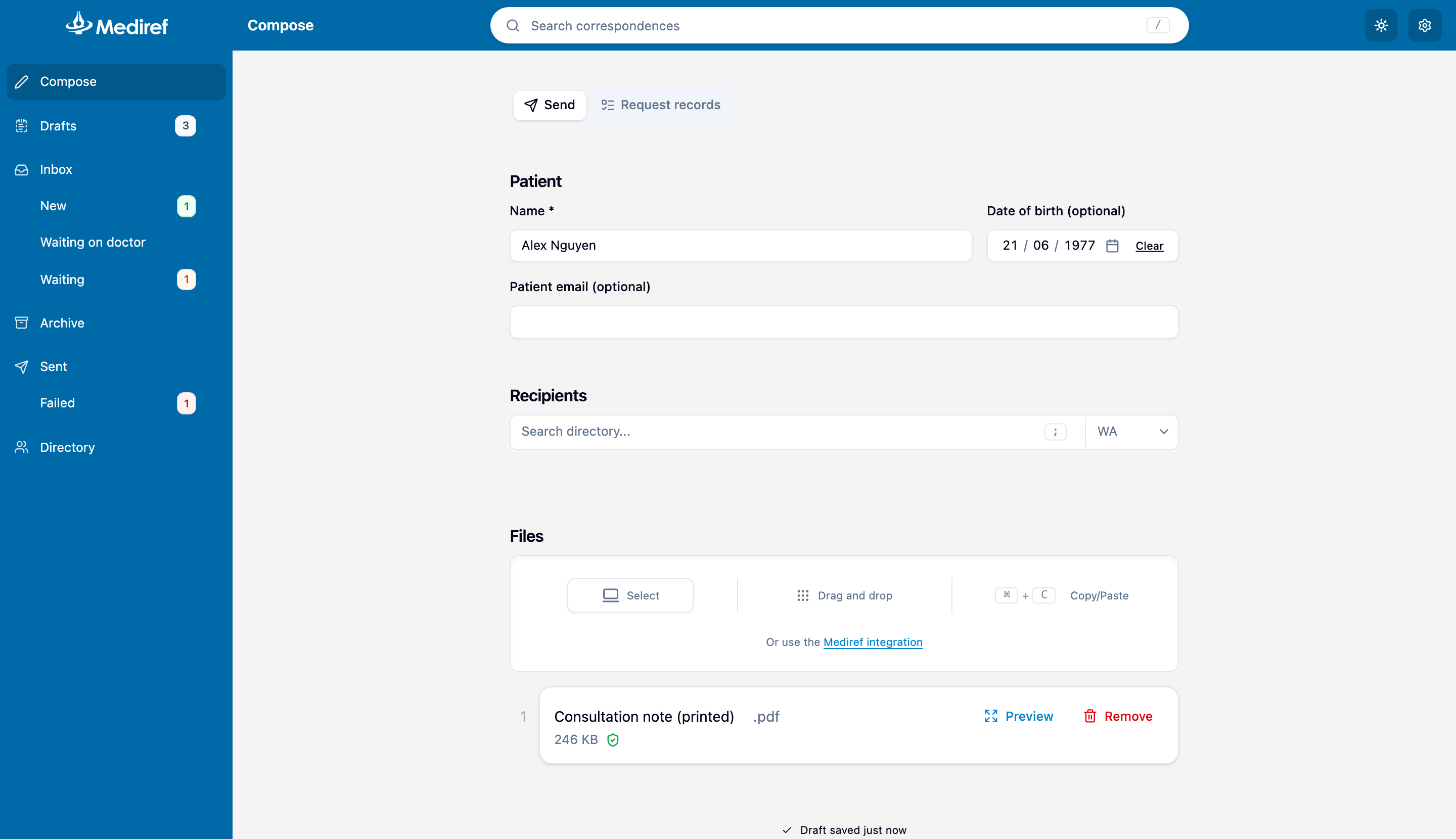
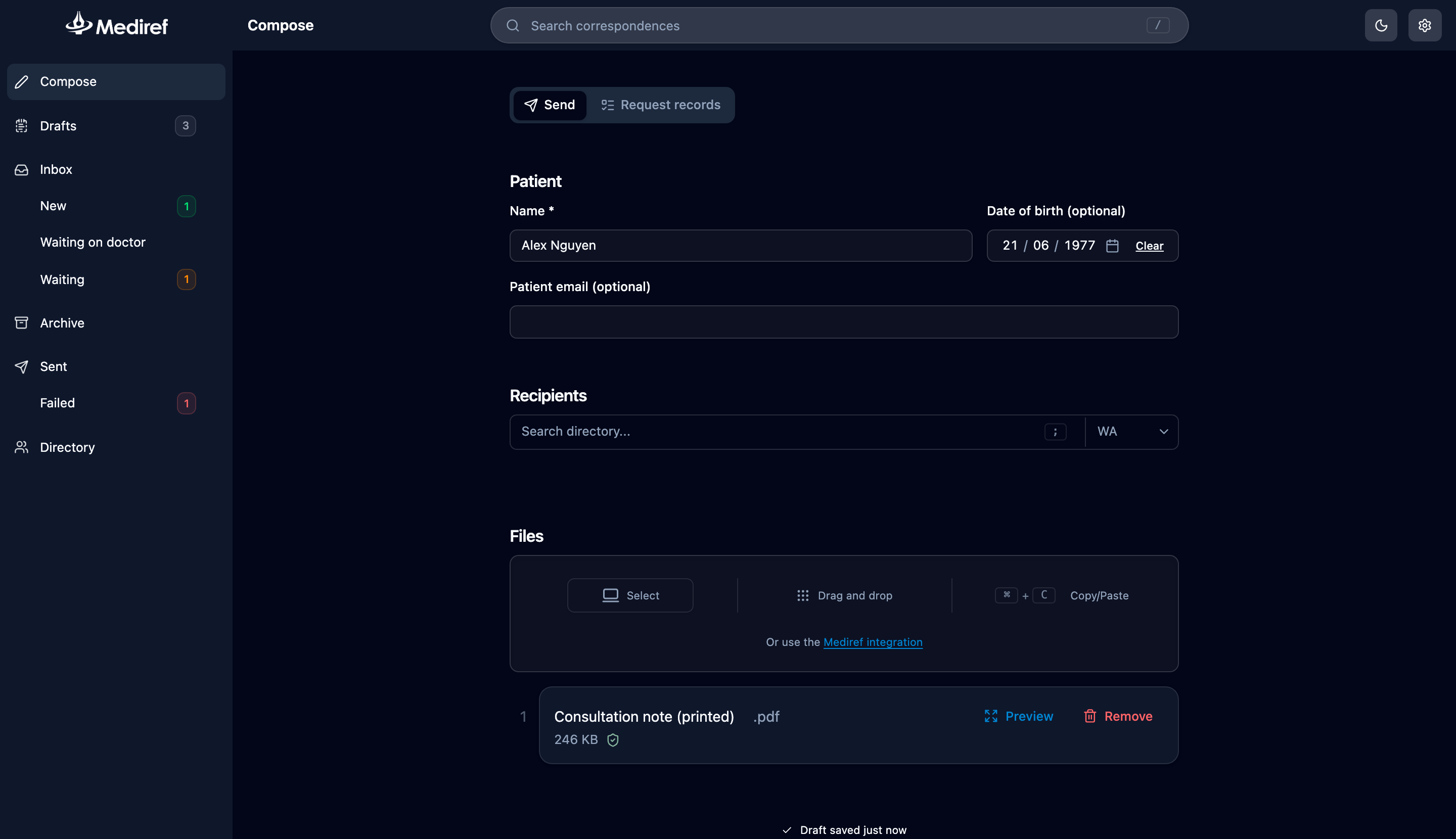
- Mediref comes to the front with Compose open and the file already in the list. Check it’s the right document and every page is there.
- Check the patient details and recipients. Some practice software passes across the patient’s name, the patient’s email address, and the recipient’s email address, so those boxes may arrive filled in.
- Add an extra password if it’s needed — see Use an extra password — then click Send.
X-rays and photos
Printing turns a document into a PDF, which flattens an image and loses quality. Save the original out of your imaging software and add it in Compose instead — browse for it, drag it in, or paste it. Mediref takes x-ray files, TIFF, PNG and JPEG, and zip files holding several images. If you always export to the same folder, Mediref can watch it — see Set up automatic uploads.